Here's How Apple Watch Widgets Work in watchOS 10

Apple last week previewed watchOS 10, its next major software update for compatible Apple Watch models. Among a handful of new features, one of the most impactful is the introduction of widgets. Let's take a closer look at how they work and what you can do with them.
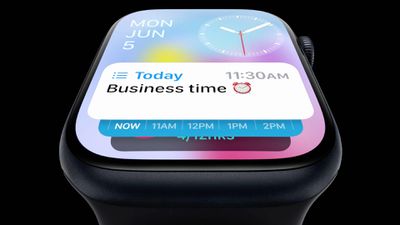
widgets in watchos10

What's Up With Widgets?

Widgets offer a new way to quickly bring up app-related information from any watch face on your Apple Watch, without having to open the corresponding app or rely exclusively on complications. In other words, if you choose simple faces without complications, you can still access the information you want, and if you like complication-rich faces, now you can get even more info at a glance.

In watchOS 10, an upward turn of the Digital Crown or a swipe up from the bottom of the watch face using your finger (Control Center is now accessed via the Side button) reveals a dynamic Smart Stack of widgets below the time and date that takes up half of the screen. You can scroll through these widgets with the Digital Crown or your finger, and tap a widget to open its corresponding app.
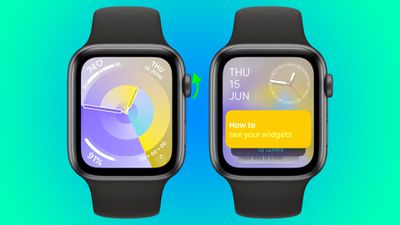
widgets watchos
By using machine learning, the order of widgets can change based on your needs at any given time of day.

For example, if you have upcoming events in your calendar, a boarding pass for an upcoming flight, or tasks you need to complete, these will be displayed in order of priority. Or if you start a timer, it will appear at the top of the widget stack so you can easily see how long is left.

In addition to relevance-based ordering, Smart Stack also includes the ability to manually organize widgets, so the Smart Stack can be as dynamic or as fixed as you want.

There are actually two types of widget in watchOS 10: Dedicated app widgets that provide information from a single app, and a user-configurable complications widget that shows up to three watch face-style complications.
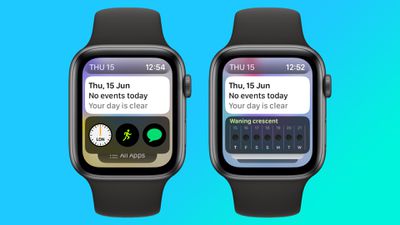
watch widgets complications
At the very bottom of the widget stack is a button that takes you to the traditional app menu to access all your Apple Watch apps.

Choosing the Widgets You Want to See

Like iPhone Home Screen widgets in iOS 16, Apple Watch widgets in watchOS 10 can work as a Smart Stack that changes based on the context or time of day, or you can manually choose the ones you want to include and also pin widgets to the top of the stack. The following steps show you how to edit widgets from any watch face.

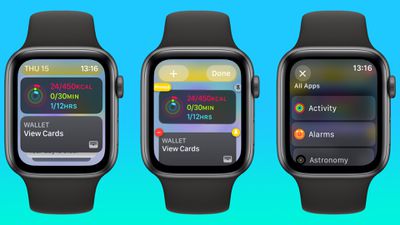
  1. On an Apple Watch running watchOS 10, scroll up using the Digital Crown, or swipe up from the bottom of the screen using your finger.
  2. Long press any widget to enter the stack's jiggle mode. (Note that you can't edit the date and time display at the top of the stack.)
  3. Tap the red minus button on a widget to remove it from the stack, or tap the large plus button above the stack to add one.
  4. To pin a widget so that it remains at the top of the stack, tap its yellow pin icon.
  5. To edit the complications widget, scroll to the bottom and tap the minus icon next to a complication, then tap the plus symbol to replace it with another available complication. (Note: You can also pin the complications widget.)
editing widgets watch

Summing Up

Apple is pitching widgets as a way of enjoying simple watch faces like Portrait, without being far from the sort of onscreen information that complications typically provide. By using the Digital Crown, real-time data from your favorite apps is just a dial turn away. What do you think of widgets? Let us know in the comments.

watchOS 10 will be released to the public this fall and is compatible with the Apple Watch Series 4 and later. In addition, you'll also need an iPhone capable of running iOS 17. This includes the iPhone XS or later and iPhone XR or later. For a full list of iPhones compatible with iOS 17, check out our quick guide.

Related Roundup: watchOS 26
Related Forum: Apple Watch

Popular Stories

Apple Wallet ID Illinois

Apple Plans to Expand iPhone Driver's Licenses to These 7 U.S. States

Wednesday December 24, 2025 8:40 am PST by
In select U.S. states, residents can add their driver's license or state ID to the Apple Wallet app on the iPhone and Apple Watch, and then use it to display proof of identity or age at select airports and businesses, and in select apps. The feature is currently available in 13 U.S. states and Puerto Rico, and it is expected to launch in at least seven more in the future. To set up the...
iPhone Top Left Hole Punch Face ID Feature Purple

iPhone 18 Pro Launching Next Year With These 12 New Features

Tuesday December 23, 2025 8:36 am PST by
While the iPhone 18 Pro and iPhone 18 Pro Max are not expected to launch for another nine months, there are already plenty of rumors about the devices. Below, we have recapped 12 features rumored for the iPhone 18 Pro models. The same overall design is expected, with 6.3-inch and 6.9-inch display sizes, and a "plateau" housing three rear cameras Under-screen Face ID Front camera in...
maxresdefault

Where's the New Apple TV?

Monday December 22, 2025 11:30 am PST by
Apple hasn't updated the Apple TV 4K since 2022, and 2025 was supposed to be the year that we got a refresh. There were rumors suggesting Apple would release the new Apple TV before the end of 2025, but it looks like that's not going to happen now. Subscribe to the MacRumors YouTube channel for more videos. Bloomberg's Mark Gurman said several times across 2024 and 2025 that Apple would...
iOS 26

iOS 26.2 Adds These 8 New Features to Your iPhone

Monday December 22, 2025 8:47 am PST by
Earlier this month, Apple released iOS 26.2, following more than a month of beta testing. It is a big update, with many new features and changes for iPhones. iOS 26.2 adds a Liquid Glass slider for the Lock Screen's clock, offline lyrics in Apple Music, and more. Below, we have highlighted a total of eight new features. Liquid Glass Slider on Lock Screen A new slider in the Lock...
maxresdefault

10 Mac Apps Worth Trying in 2026

Wednesday December 24, 2025 9:27 am PST by
2026 is almost upon us, and a new year is a good time to try out some new apps. We've rounded up 10 excellent Mac apps that are worth checking out. Subscribe to the MacRumors YouTube channel for more videos. Alt-Tab (Free) - Alt-Tab brings a Windows-style alt + tab thumbnail preview option to the Mac. You can see a full window preview of open apps and app windows. One Thing (Free) -...
Foldable iPhone 2023 Feature Iridescent Search

Samsung Developing 'Wide Fold' With iPhone Fold-Like Design Ahead of Apple's 2026 Launch

Tuesday December 23, 2025 11:55 am PST by
Samsung is working on a new foldable smartphone that's wider and shorter than the models that it's released before, according to Korean news site ETNews. The "Wide Fold" will compete with Apple's iPhone Fold that's set to launch in September 2026. Samsung's existing Galaxy Z Fold7 display is 6.5 inches when closed, and 8 inches when open, with a 21:9 aspect ratio when folded and a 20:18...
iOS 26

iOS 26.3 Brings AirPods-Like Pairing to Third-Party Devices in EU Under DMA

Monday December 22, 2025 3:20 pm PST by
The European Commission today praised the interoperability changes that Apple is introducing in iOS 26.3, once again crediting the Digital Markets Act (DMA) with bringing "new opportunities" to European users and developers. The Digital Markets Act requires Apple to provide third-party accessories with the same capabilities and access to device features that Apple's own products get. In iOS...
iPhone Fold Vertical Feature

Why Apple's Foldable iPhone May Be Smaller Than Expected

Tuesday December 23, 2025 5:21 am PST by
Apple's first foldable iPhone, rumored for release next year, may turn out to be smaller than most people imagine, if a recent report is anything to go by. According to The Information, the outer display on the book-style device will measure just 5.3 inches – that's smaller than the 5.4-inch screen on the ‌iPhone‌ mini, a line Apple discontinued in 2022 due to poor sales. The report has led ...
iphone fold 3d print

Have a 3D Printer? You Can Make Your Own iPhone Fold Dummy

Tuesday December 23, 2025 1:31 pm PST by
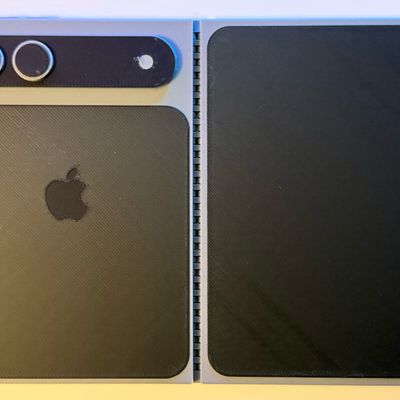
Apple is working on a foldable iPhone that's set to come out in September 2026, and rumors suggest that it will have a display that's around 5.4 inches when closed and 7.6 inches when open. Exact measurements vary based on rumors, but one 3D designer has created a mockup based on what we've heard so far. On MakerWorld, a user named Subsy has uploaded a 1:1 iPhone Fold replica (via Macworld), ...

Top Rated Comments

Adamov Avatar
33 months ago
What I really don't like in watchOS 10 is that Apple removed the ability to swipe between watch faces. Now you have to long press on the watch face to enter edit mode and then swipe :(
Score: 23 Votes (Like | Disagree)
bookcase Avatar
33 months ago
This is a terrific update -- I don't currently use simple watch faces because of lack of complications.
Score: 13 Votes (Like | Disagree)
gank41 Avatar
33 months ago

What I really don't like in watchOS 10 is that Apple removed the ability to swipe between watch faces. Now you have to long press on the watch face to enter edit mode and then swipe :(
Not only did they remove the ability to swipe between Watch Faces, but they also added redundant ways of bringing up these new Widgets while removing the Favorite Apps option completely. You used to swipe up on the Watch Face to bring up the Control Center (Which is Great!), but they now moved that to the Side Button in lieu of the Favorite Apps. So now the only way to navigate to a commonly used app, like Settings, is to press the Digital Crown and then scroooollllllllll all the way to the end of your list of apps. I'm not sure how long things will stay this way, or if maybe we'll see options to choose what the Side button does? Doesn't seem like there needs to be two ways to do the same thing while removing something else.
Score: 12 Votes (Like | Disagree)
WarmWinterHat Avatar
33 months ago

So wish they dropped support for the watch 4. It’s like the iPad 2 or iPhone 6S of watches
There is absolutely nothing wrong with the s4.
Score: 8 Votes (Like | Disagree)
ColeSQ Avatar
33 months ago
I've always felt like I had to have multiple faces just to get easy access to all the data I want to see quickly on my watch so this feels like a big upgrade. No more scheduling faces for particular times of day to prioritize on the limited amount of data I could easily see onscreen, and probably a lot less squinting as a compromise for having a data rich face with tiny tiny data, all crammed in.
Score: 8 Votes (Like | Disagree)
GabooN Avatar
33 months ago

What I really don't like in watchOS 10 is that Apple removed the ability to swipe between watch faces. Now you have to long press on the watch face to enter edit mode and then swipe :(
Not happy to hear of this change. I currently swipe left or right one face to access frequently used things that I don't keep on the main face.
Score: 7 Votes (Like | Disagree)