If you have regular access to an iPhone charger during the day and a healthy battery, you probably don't need to worry much about extending your iPhone's battery. For days when you're away from home for long periods of time, though, you might need to take some steps to make sure you get the most out of your battery.
We've rounded up 10 tips that will help ensure your battery lasts all day.
1. Disable iPhone Mirroring
iPhone Mirroring lets you control your iPhone from your Mac, and when it's turned on, you'll get iPhone notifications on your Mac display even when your iPhone is tucked away.
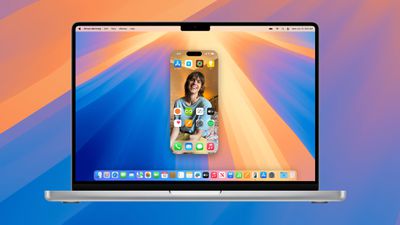
When it's in active use it can be helpful, but there is a connection between the Mac and the iPhone to relay notifications. Notifications can show up on the Mac even when the iPhone Mirroring app is closed, and there is anecdotal evidence from MacRumors readers suggesting this can be a notable battery drain.
If you're not using iPhone Mirroring, it's worth turning it off. To do so, go to Settings > General > AirPlay and Continuity and tap on Edit. From there, delete the Macs that your iPhone connects to.
2. Be Mindful of Apple Intelligence Usage
On iPhone 15 Pro and iPhone 16 models, Apple Intelligence can have a major impact on battery life. Processing for features like Genmoji, Image Playground, and Writing Tools is done entirely on-device.
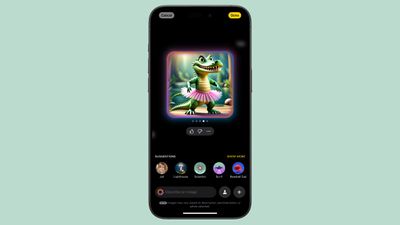
In a test, a little over an hour of making emojis with the Genmoji feature drained an iPhone 16 Pro Max's battery 50 percent, so keep that in mind. If you're in a situation where your battery needs to last for a long time, stay away from generating images with Apple Intelligence.
3. Use Dark Mode When Possible
On OLED iPhone displays, activating Dark Mode preserves battery life because there's less power draw when darker colored pixels are displayed. Activating Dark Mode when outside on a sunny day can save you a ton of battery, according to a 2021 Purdue study.
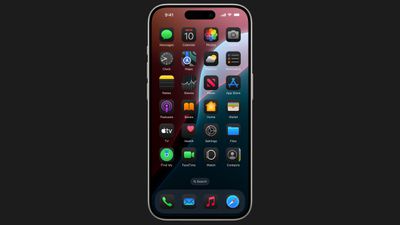
Lower levels of brightness in Light Mode use the same battery as higher levels of brightness in Dark Mode, so Dark Mode can save battery even when brightness is turned up when you're in a sunny location.
When you're somewhere that has dimmer lighting and screen brightness is lower, turning on Dark Mode won't save as much battery life, but it still draws a bit less power.
As of iOS 18, you can set a Dark option for your icons that turns them darker when Dark Mode is enabled (or all the time, if you prefer). Dark icons are easier on the eyes when Dark Mode is on, and it might save just a little extra battery life.
Along with Dark Mode, keep your screen brightness as low as is comfortable, because that's also going to preserve battery. You can quickly adjust brightness using the Control Center.
4. Connect to Wi-Fi When It's Available
This tip is straight from Apple. Whenever you're somewhere that has a Wi-Fi connection available, it's a good idea to use it over cellular.
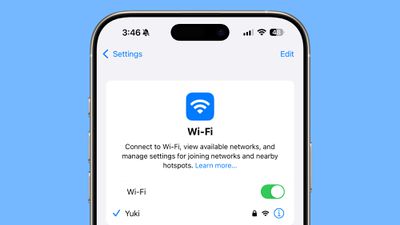
Wi-Fi uses less power than cellular, and a cellular connection can be one of the biggest battery drains.
When in a place with low signal that's constantly cutting out or no signal, go even further and turn on Airplane mode. When your iPhone is constantly searching for a better cellular signal, it impacts battery life.
5. Turn Off Haptic Keyboard Feedback
Haptic feedback on the iPhone's keyboard is satisfying to feel when you tap on the on-screen keys, but it does drain your battery.
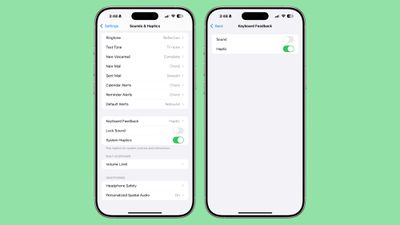
You can turn it off by going to Settings > Sounds & Haptics > Keyboard Feedback and toggling off Haptic.
6. Set Up Focus Modes and Scheduled Summary
Most of us have tons of notifications coming in throughout the day, and constantly getting alerts and activating the iPhone's display can cost you battery life.
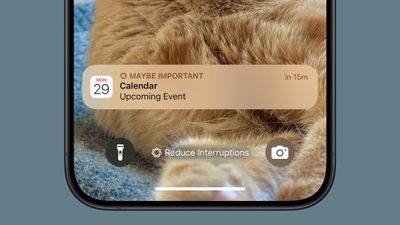
If you haven't already, it's a good idea to set up Focus modes to tailor the notifications you're getting to what you need for any given activity. If you're at home, for example, you can set up a "Personal" mode that filters work notifications, or at work, a mode that filters notifications from games and other apps you don't need while working.
Focus modes are entirely customizable, so you can choose which apps and people can contact you in each mode, and there are even options for filtering out select emails, messages, calendars, and more.
On iPhones that support Apple Intelligence, Apple added a "Reduce Interruptions" Focus mode that intelligently filters what's not important while delivering what you need to see immediately. If you don't want to hassle with Focus modes, this is a good option.
Note that when you use a Focus mode, you'll still get all of your notifications when the Focus mode ends, but in a single alert rather than multiple. Focus modes can be set up in the Focus section of the Settings app.
On a related note, set up Scheduled Summary for any app that sends you unimportant notifications. Scheduled Summary aggregates all of your notifications and sends them to you just once or twice a day.
You can toggle on Scheduled Summary for apps in the Notifications section of the Settings app.
7. Use Offline Maps
In an off-grid area or a place with low cellular signal, Offline Maps can be a real help. When driving or hiking somewhere where signal is low, download a map so you can have full maps access and turn-by-turn directions without a cellular connection.
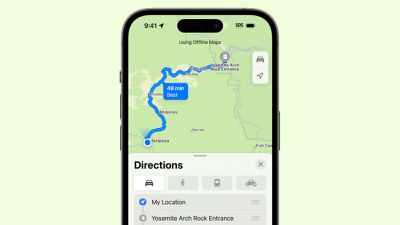
Offline Maps is a good option to pair with Airplane mode in areas where cellular signal is hit or miss.
8. Automate Low Power Mode
Turning on Low Power Mode is the most obvious way to preserve battery life on your device, and it's a good idea to automate it so it can be set to turn on at a specific battery percentage.
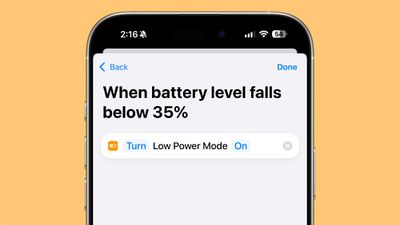
Apple will prompt you to turn on Low Power Mode when your battery is at 20 percent, but it's often helpful to turn it on even earlier. To set up a Low Power Mode shortcut, open up the Shortcuts app, and create a new Automation. From there, search for Battery Level and choose a target battery percentage. Hit the "Next" button, search for Low Power Mode, and select it. That will cause Low Power Mode to activate automatically when your battery hits your target level.
9. Turn Off Fitness Tracking
Your iPhone has a Fitness Tracking feature that stores motion data to estimate your body movements, mobility, step counts, stairs climbed, and more. If you have an Apple Watch or another fitness tracker, you don't need this setting and it could be contributing to unnecessary battery usage.
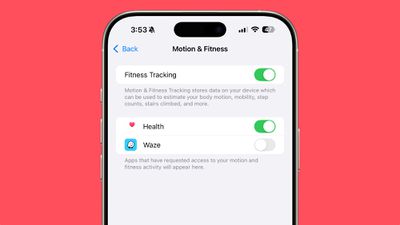
To turn it off, open up the Settings app and go to Privacy and Security > Motion and Fitness and then toggle off the Fitness Tracking setting.
10. Check App Access Settings
Many apps request access permissions that they don't need and probably shouldn't have access to. Apps that don't need but use Bluetooth or Location can drain your battery life, so it's best to check all of your app settings for both battery preservation and privacy purposes.
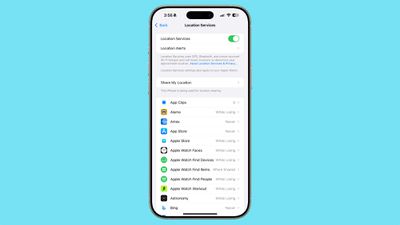
- Location - Settings > Privacy and Security > Location Services.
- Bluetooth - Settings > Privacy and Security > Bluetooth.
In each of these sections, toggle off access for apps that don't need this data. An app that connects to something in your home via Bluetooth does need Bluetooth, but apps like Waze, Facebook, and YouTube often don't need it.
It's also a good idea to turn off background refresh for apps that don't need to be updating in the background. Go to Settings > General > Background App Refresh to check your settings.
Have a useful battery saving tip that we didn't mention here? Let us know in the comments below.