Customizing Your iPhone 16 Images With Photographic Styles

One of the major new software-based camera features in the iPhone 16 models is support for a wider range of Photographic Styles, complete with more granular controls to make for a setup where you can create a customized look for all of your images.
photographic styles iphone 16
Photographic Styles isn't a feature that's quite as easy to use as something as simple as a filter, so we thought we'd delve into how it works and how to get the most from it.

Available Photographic Styles

Photographic Styles aren't new, but with prior iPhone models, there were only four options: Rich Contrast, Vibrant, Warm, and Cool. On the ‌iPhone 16‌, there are several more pre-set styles to choose from.

  • Cool Rose
  • Neutral
  • Rose Gold
  • Gold
  • Amber
  • Standard (No edits)
  • Vibrant
  • Natural
  • Luminous
  • Dramatic
  • Quiet
  • Cozy
  • Ethereal
  • Muted Black and White
  • Stark Black and White

All of the styles have varying Tone, Color, and Palette settings, that correspond to brightness, saturation, and effect intensity.

How Photographic Styles Work

According to Apple, on the ‌iPhone 16‌ models, Photographic Styles adjust specific colors in select parts of your photos to adjust the overall look.

The first five Photographic Styles are tuned for skin undertones, including Cool Rose, Neutral, Amber, Rose Gold, and Gold. Cool Rose accentuates cool pinkish undertones, while neutral neutralizes warm undertones. Amber, Rose Gold, and Gold accentuate those specific tones. These can be fairly subtle, depending on the settings you choose.

Other Styles are closer to what you get with a filter, adding more dramatic effects that impact the mood of the image.

Setting Up and Customizing Your Style

When you've taken at least four photos with the ‌iPhone 16‌ camera, you can go to Settings > Camera > Photographic Styles to set the base tone that you want to use for all of your images.

You can pick from the skin tone-focused options, which include Cool Rose, Neutral, Amber, Rose Gold, and Gold. You'll see the different effects across four images, and you can adjust the intensity to begin with.

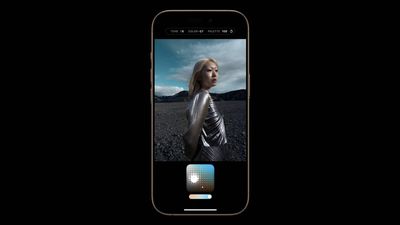
After you've selected a favorite undertone, you can further refine the look by dragging a finger over the touchpad, which changes the brightness and saturation. The slider changes the overall intensity.

Once you've set your Photographic Style, it's automatically applied to all of your images and it is the default value for your photos.

If you want to turn it off, you can go to Settings > Camera > Photographic Styles > Reset to Standard.

Real-Time Previews

In the Camera app when you go take a photo, if you tap on the touchpad icon, you can select a different undertone or mood style. Swiping changes the Photographic Style, and the controls below can be used to customize the look.

The option to use customized Photographic Styles in real-time lets you preview what an image will look like with different effects before you even take it.

You can access Photographic Styles from the Camera Control button too. Press Camera Control once to open the Camera app, then light press to bring up the Camera Control menu. Swipe until you get to Styles or Tone, then light press again to select it. From there, you can make adjustments by swiping. To get back to the menu to select another option, use a light double press.

Editing After a Shot

You can add or adjust a Photographic Style after an image has been captured, so it's not something that you need to do in the moment. This is the first time that Apple has allowed Photographic Styles to be edited after the fact - earlier versions of this feature only allowed the Style to be applied when taking an image.

To edit a Photographic Style, go to the Photos app, tap on the three bars to enter the editing interface, and then tap on Styles. You can select any of the styles and then adjust it using the touchpad.

The touchpad's X axis adjusts color, while the Y axis adjusts tone. The slider adjusts overall intensity or Palette. A Tone setting of 0, a Color setting of 0, and a Palette setting of 0 result in a "Standard" photo that has no Photographic Style applied, so that's a good starting point to better understand exactly what each style is changing.

Adjusting the Color to the left desaturates, while dragging it to the right deepens color. Dragging Tone up makes the image brighter, while dragging it down makes it darker.

You can change the Photographic Style setting at any point, and it is a non-destructive edit so it's not permanent. If you want to get back to a normal, unedited photo, choose the Standard setting.

Photographic Styles are entirely distinct from the ‌Photos‌ app Adjust section where you can tweak exposure, brilliance, highlights and shadows, contrast, brightness, saturation, vibrance, warmth, tint, and more.

HEIF Only

If you have your ‌iPhone‌ set to take JPG images instead of HEIF, you won't be able to use Photographic Styles. You need to have HEIF turned on. In the Camera section of the Settings app, HEIF can be enabled by going to Formats and choosing "High Efficiency" instead of "Most Compatible."

Preserve Settings

By default, the Photographic Style that you set up using the Settings app will be used automatically. If you select a different Photographic Style when you're taking a photo, it will use that only until you close the Camera app.

If you want the Photographic Style you selected in the Camera app to be the new default, you need to go to Settings > Camera > Preserve Settings and toggle on Photographic Style. With this turned on, your ‌iPhone‌ will preserve your last used Photographic Style rather than reset to your default.

Photographic Styles and Older iPhones

Older iPhones do not support the new touchpad and adjustment settings for Photographic Styles, but if you take an image on an ‌iPhone 16‌ and then edit it on an older phone, you can see the touchpad to make further adjustments.

Related Roundup: iPhone 16
Related Forum: iPhone

Popular Stories

Apple Wallet ID Illinois

Apple Plans to Expand iPhone Driver's Licenses to These 7 U.S. States

Wednesday December 24, 2025 8:40 am PST by
In select U.S. states, residents can add their driver's license or state ID to the Apple Wallet app on the iPhone and Apple Watch, and then use it to display proof of identity or age at select airports and businesses, and in select apps. The feature is currently available in 13 U.S. states and Puerto Rico, and it is expected to launch in at least seven more in the future. To set up the...
iPhone Top Left Hole Punch Face ID Feature Purple

iPhone 18 Pro Launching Next Year With These 12 New Features

Tuesday December 23, 2025 8:36 am PST by
While the iPhone 18 Pro and iPhone 18 Pro Max are not expected to launch for another nine months, there are already plenty of rumors about the devices. Below, we have recapped 12 features rumored for the iPhone 18 Pro models. The same overall design is expected, with 6.3-inch and 6.9-inch display sizes, and a "plateau" housing three rear cameras Under-screen Face ID Front camera in...
iOS 26

iOS 26.2 Adds These 8 New Features to Your iPhone

Monday December 22, 2025 8:47 am PST by
Earlier this month, Apple released iOS 26.2, following more than a month of beta testing. It is a big update, with many new features and changes for iPhones. iOS 26.2 adds a Liquid Glass slider for the Lock Screen's clock, offline lyrics in Apple Music, and more. Below, we have highlighted a total of eight new features. Liquid Glass Slider on Lock Screen A new slider in the Lock...
maxresdefault

10 Mac Apps Worth Trying in 2026

Wednesday December 24, 2025 9:27 am PST by
2026 is almost upon us, and a new year is a good time to try out some new apps. We've rounded up 10 excellent Mac apps that are worth checking out. Subscribe to the MacRumors YouTube channel for more videos. Alt-Tab (Free) - Alt-Tab brings a Windows-style alt + tab thumbnail preview option to the Mac. You can see a full window preview of open apps and app windows. One Thing (Free) -...
maxresdefault

Where's the New Apple TV?

Monday December 22, 2025 11:30 am PST by
Apple hasn't updated the Apple TV 4K since 2022, and 2025 was supposed to be the year that we got a refresh. There were rumors suggesting Apple would release the new Apple TV before the end of 2025, but it looks like that's not going to happen now. Subscribe to the MacRumors YouTube channel for more videos. Bloomberg's Mark Gurman said several times across 2024 and 2025 that Apple would...
Foldable iPhone 2023 Feature Iridescent Search

Samsung Developing 'Wide Fold' With iPhone Fold-Like Design Ahead of Apple's 2026 Launch

Tuesday December 23, 2025 11:55 am PST by
Samsung is working on a new foldable smartphone that's wider and shorter than the models that it's released before, according to Korean news site ETNews. The "Wide Fold" will compete with Apple's iPhone Fold that's set to launch in September 2026. Samsung's existing Galaxy Z Fold7 display is 6.5 inches when closed, and 8 inches when open, with a 21:9 aspect ratio when folded and a 20:18...
iOS 26

iOS 26.3 Brings AirPods-Like Pairing to Third-Party Devices in EU Under DMA

Monday December 22, 2025 3:20 pm PST by
The European Commission today praised the interoperability changes that Apple is introducing in iOS 26.3, once again crediting the Digital Markets Act (DMA) with bringing "new opportunities" to European users and developers. The Digital Markets Act requires Apple to provide third-party accessories with the same capabilities and access to device features that Apple's own products get. In iOS...
iphone fold 3d print

Have a 3D Printer? You Can Make Your Own iPhone Fold Dummy

Tuesday December 23, 2025 1:31 pm PST by
Apple is working on a foldable iPhone that's set to come out in September 2026, and rumors suggest that it will have a display that's around 5.4 inches when closed and 7.6 inches when open. Exact measurements vary based on rumors, but one 3D designer has created a mockup based on what we've heard so far. On MakerWorld, a user named Subsy has uploaded a 1:1 iPhone Fold replica (via Macworld), ...
iPhone SE Cosmopolitan Clean

Apple Discontinued These 25 Products This Year

Wednesday December 24, 2025 7:24 am PST by
With the end of 2025 near, the time has come to look back at the devices and accessories that Apple discontinued throughout the year. Most of the products that were discontinued this year were simply replaced by a new model with an updated chip. However, the iPhone SE line was entirely discontinued when the iPhone 16e launched, and the iPhone Plus line is being phased out. Below, we have...

Top Rated Comments

rotvaldi Avatar
16 months ago
Software that could be easily added to older phones… pass for greedys
Score: 37 Votes (Like | Disagree)
McWetty Avatar
16 months ago
These software locked features are starting to erode my Apple love. I won’t go Google, but I’m becoming indifferent to the Think Different…
Score: 30 Votes (Like | Disagree)
Noctilux.95 Avatar
16 months ago
Much rather have better sensor/optics than cheesy filters.
Score: 10 Votes (Like | Disagree)
Mark_Twain Avatar
16 months ago

Software that could be easily added to older phones… pass for greedys
If these new features were available via a paid software update, would you pay for it?
I'm just happy that my Apple devices get free software updates for at least 7 years and, for the most part, are able to run the latest software versions.
Score: 6 Votes (Like | Disagree)
rotvaldi Avatar
16 months ago

These software locked features are starting to erode my Apple love. I won’t go Google, but I’m becoming indifferent to the Think Different…
the point is that already a sideloader could activate them all MikasaX Sideloader and that makes you think that they actually are Software locked with no reason to justify the locking to old generations.
Score: 6 Votes (Like | Disagree)
monstermash Avatar
16 months ago

Imagine being an iPhone 15 Pro user, 12 months ($1000) after buying it, with a chipset that runs at just under 7% of the iPhone 16 Pro or 3% of the iPhone 16 and being told that your phone isn't powerful enough to run some live filters. Imagine believing that. This is a massive kick in the teeth for iPhone 15 Pro users. Let's be frank, this is money grabbing/planned obsolescence at its worst.
So what if it is money grabbing? The purpose of a corporation is to make as much money as it can.

Today, an iPhone 15 does everything it did when you bought it. Nobody is forcing you to buy a new phone and spend that money. Just don't do it! I generally wait 3 years between phones. I didn't this time only because I expect to be dead before the next one comes out.

A new device having more features than your current one hardly makes yours obsolete. The 15 will be a perfectly good and supported phone for MANY years. You could EASILY be just fine using it another 4 years, if you can resist the urge to feel unhappy because you don't have the latest and greatest.

Hell, my MacBook Pro is from 2012. Coming up on 13 years old! It works just great! My 2007 Jeep and 2009 Yamaha TMAX (motorcycle) are also old but just fine.

It's all about mental attitude. Choose to be unhappy with your current phone, or not. It's up to you, not Apple.
Score: 4 Votes (Like | Disagree)