

 The Finder is a classic Mac system component that's ever-present on your desktop, ready to help you find and organize your documents, media, folders, and other files. It's the smiling icon known as the Happy Mac logo on your Dock, and includes the Finder menu bar at the top of the screen.
A lot of hidden power resides in every Finder window. In this article, we've highlighted some of our favorite Finder tips and tricks to help you work more efficiently with files and folders on your Mac.
1. Quickly Adjust Column Widths
The Column view is one of our favorite ways of working with files, and we've got two quick column adjustment tips to make it work better for you.
If you open a new Finder window and the column width is too small to view the names of your files, double-click the bottom of the column divider and the width will automatically expand to fit the longest filename.
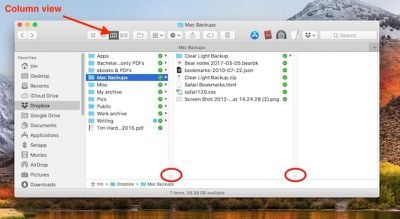
Another useful trick is to hold down the Option (⌥) key when adjusting the column width manually (by click-dragging the divider). This adjusts all of the columns in the same window at the same time, and also sets the chosen size as the default column width for all Finder windows going forward.
2. Set a Default Folder for a New Finder Window
If you often work with files in a specific folder, then it's worth setting it as the default folder that every new Finder window opens with automatically.
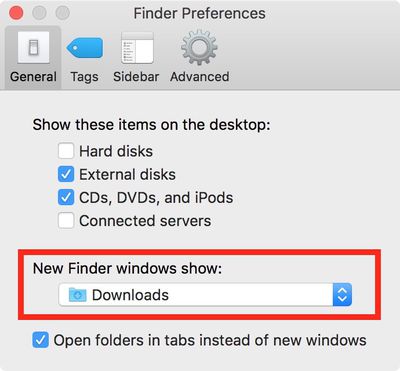
Click Preferences in the Finder menu bar, and under the General tab you'll see a dropdown menu under "New Finder windows show:". Select one of the options in the list, or click Other... to choose a custom location.
3. Customize the Toolbar
You can put more options at your fingertips when working with files and folders by adding more action buttons to every Finder window's toolbar.
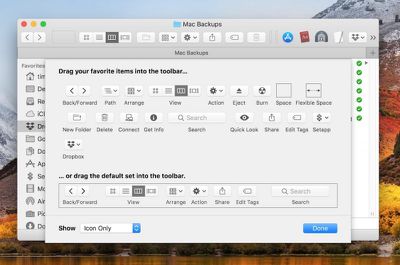
To do so, right-click (or Control-click) the Finder window's toolbar and select Customize Toolbar.... You'll see a dropdown menu of buttons any of which you can drag up to the toolbar with your mouse cursor, as well a default set that you can drag up to replace any you've previously added.
4. Add Shortcuts to the Toolbar
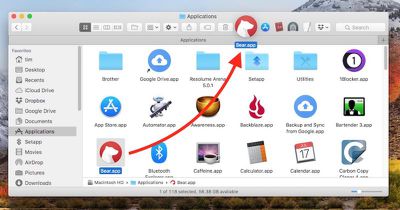
You can add convenient shortcuts along the top of the Finder window to any app, file, or folder you like, simply by holding down the Command (⌘) key and dragging the item onto an available space in the toolbar.
5. Merge All Open Finder Windows
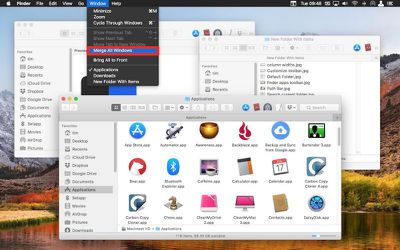
If your desktop is being taken over by multiple Finder windows, you can quickly unify them as tabs in a single window: With a Finder window active, simply click Window in the menu bar and select Merge All Windows.
6. Reveal the File or Folder Path
The location of a folder or file may not be immediately obvious when viewed in a Finder window, so here are a few ways to find out.
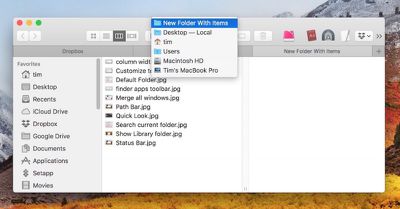
The easiest method is to right-click (or Control-click) the folder name and icon in the title bar. This will show you the full path in a dropdown menu, allowing you to quickly jump to any folder in the list.
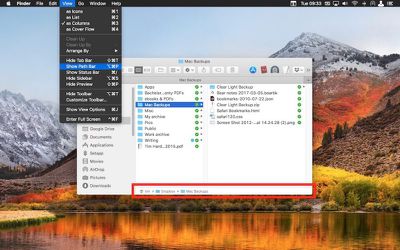
Alternatively, you can make the path constantly visible at the bottom of every Finder window, by selecting View -> Show Path Bar in the Finder menu bar. Note that you can double-click on any folder in the Path bar to jump straight to it in the current open window/tab.
If you don't want the Path bar taking up space in each Finder window, you can make the path appear by default in the title bar. Simply open Terminal (in Applications/Utilities) and type the following command into the Terminal window:
defaults write com.apple.finder _FXShowPosixPathInTitle -bool true; killall Finder
If you no longer want the path to appear in each Finder's title bar, just run the above command again but replace the word true with false.
7. Show the Status Bar
Surprisingly turned off by default, Finder's Status bar displays two pieces of information that will come in handy when organizing your files.
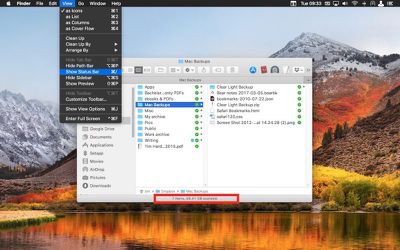
In the Finder menu bar, select View -> Show Status Bar, and at a glance you'll be able to tell how many items are contained in the open folder, as well as the current disk's available storage space.
8. Reveal the Library Folder
Apple hides the Library folder by default to prevent less savvy users from fiddling with its contents and causing app/system issues, but if you'd rather have easy access to the Library folder, here are two ways to reveal it.
For quick access to the Library folder from the Finder menu bar, click the Go menu, hold down the Option (⌥) key, and then select Library in the dropdown menu.
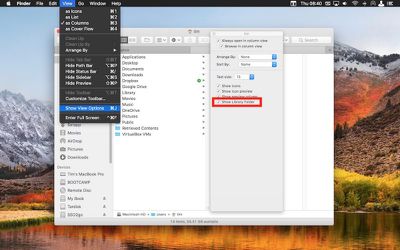
If you want to reveal the Library folder permanently, navigate to your home folder (found in /user/[yourname]/... from the system root directory), select View -> Show View Options from the menu bar, and then check "Show Library Folder" at the bottom of the options pane.
9. Search Only the Current Folder
The Search bar in every Finder window searches your entire system by default, but there's an option in Finder's preferences that lets you automatically limit searches to the folder that's currently open.
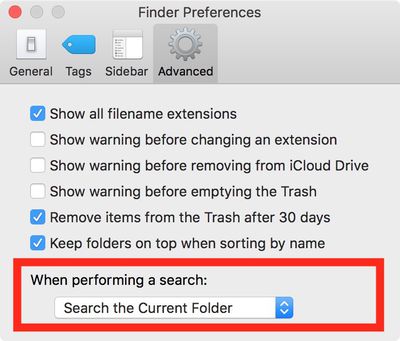
In the menu bar, click Finder -> Preferences and select the Advanced tab. In the dropdown menu under "When performing a search", select Search the Current Folder.
10. Enter a Fullscreen Slideshow in Quick Look
Most macOS users are familiar with Finder's spacebar-activated Quick Look mode, which offers a preview of the currently highlighted file or files, but fewer users will be aware of Quick Look's fullscreen slideshow feature.

You can enter a fullscreen slideshow preview by holding the Option (⌥) key when you next press the spacebar to activate Quick Look. The desktop will fade out for a close-up of your selected images and/or documents, which can be scrolled through using the arrow keys or using the onscreen navigation overlay. You can also select the index card icon on the overlay to glance at all your selected files on the one screen.
Got an essential Finder tip we haven't covered? Be sure to share it in the comments below.






















Top Rated Comments
“...you can make the path appear by default in the window header.”
“If you no longer want the path to appear in each window header...”
Since 1984 this has been called the Title Bar. Maybe the next MacRumors tutorial should review names for basic screen objects.
My favorite tip wasn't included. You can easily rename a whole bunch of files in one go by selecting them all and doing Right Click -> Rename X Items.
This will open up a dialog that allows you to set a common name for all the files followed by how you want the numerical indexing to work. You can group a bunch of images together and rename them something like "My_Vacation_2018-1.jpg, My_Vacation_2018-2.jpg, My_Vacation_2018-3.jpg" and so forth.