Once you've migrated your image library from iPhotos or Aperture (or both), you'll probably want to add all the images from your iPhone or iPad and get everything organized so you can quickly find pictures from specific dates and events in the future.

To help you accomplish both of these tasks, we've written up a tutorial that provides an overview of how to import pictures into the Photos app on OS X Yosemite and gives a few suggestions for how to organize your collection.
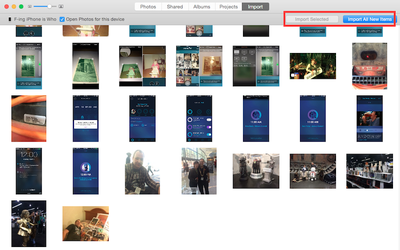
How to add and organize photos for os x 2

Importing Pictures

  1. Connect your device (iPhone, iPad, or digital camera) to your computer using the USB connector and open the Photos for OS X app.
  2. Select "Import" from the list of tabs at the top of the screen in the app.
  3. Select the images you wish to add to the Photos app, or select "Import All New Items" to add everything from your device.

Imported images will automatically be added to the "Last Import" album in Photos. You can see your photos using a number of different views, including the main Photos tab, which displays all pictures that you have added to the app and any pictures that you have taken using an iOS device that is connected using My Photo Stream.

Just like the Photos app on iOS, pictures in Photos for OS X are organized by Moments, Collections, and Years. To navigate between these timelines, click on the arrow buttons in the upper right corner of the app while in the main Photos view, or select a different view from the tabs at the top of the app.
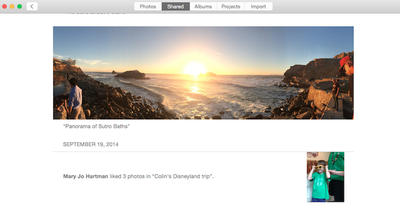
How to add and organize photos for osx yosemite
The "Shared" album houses photos and albums that you have shared with other people and those that have been shared with you. Select a shared album to see all pictures and add new photos to the album. Comments, Likes, and new pictures added will appear in the Activity section.

Under the Albums tab, you will see a list of albums that are created automatically within Photos for OS X, which may include All Photos, Faces, My Photo Stream, Last Import, Favorites, Panoramas, and Bursts. You can also create your own albums here, using the "+" button on the menu bar.

The Projects tab is where you will find books, cards, calendars, prints, or slideshows that you have created using Photos on that specific Mac.

You can also search for photos within the Photos app by typing the keyword you wish to filter into the search bar in the upper right corner. You can find groups of photos based on names, dates, locations, and more.

How to add and organize photos for os x 3

Adding Photos to Albums and Creating Albums

  1. With the Photos app on OS X Yosemite open, select "Albums" from the list of tabs at the top of the screen.
  2. Click on the "All Photos" option.
  3. Click on the pictures you would like to add to an album. You can select multiple pictures by using the command + left-click or grab a large group by using shift + left-click.
  4. Click the plus (+) button at the top right corner of the Photos app.
  5. Select "Album" from the dropdown menu.
  6. Select the album you wish to add the pictures to, or create a new album and name it.
  7. Click "OK."

Creating Smart Albums

You can create a variety of Smart Albums based on specific conditions. When created, any image that fits the criteria will automatically be added to the Smart Album. You can create Smart Albums based on such categories as the date, a specific description, Face tags, file names, keywords, camera models, shutter speed, and more. Each category includes a condition, such as "Photos is RAW" or "Camera Model is iPhone 6."
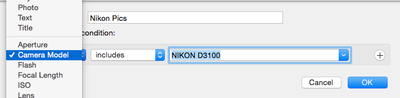
How to add and organize photos for os x 1

  1. With the Photos app on OS X Yosemite open, select the "Albums" from the list of tabs at the top of the screen.
  2. Click on the plus (+) icon in the upper right corner of the Photos app.
  3. Select "Smart Album" from the drop down menu.
  4. Name the new Smart Album. It is a good idea to name the album after the action it will be based on. For example, "Edited Pictures" or "iPhone Photos."
  5. Select the condition you wish the Smart Album to produce. You can include multiple conditions. For example, "Camera Model is iPhone 6" combined with "Photo is Favorite" will aggregate all photos taken with an iPhone 6 that have been favorited.
  6. When you are happy with the conditions you have set, click "OK."

If the Smart Album did not produce the results you were looking for, you can adjust the conditions by selecting the gear icon under it in the Albums view.

If you have a large amount of pictures in Photos for OS X Yosemite, it is a good idea to begin organizing them. A great starting point is to create albums that make it easier for you to access events that you have customized yourself. Smart Albums are great for automatically sending certain pictures to a designated folder.

When your photos are better organized, you will be much more likely to look at them again in the future. It is like the difference between opening a shoebox full of loose pictures or a nicely bound photo album with pictures displayed by date.


Top Rated Comments

TMRJIJ Avatar
139 months ago
If you migrated from Aperture and need instructions for organizing your images in Photos, you already failed.
Score: 7 Votes (Like | Disagree)
ArtOfWarfare Avatar
139 months ago
The name of your iPhone is "F_ing iPhone is Who"?

Am I the only one who saw that in the screenshot in the article?

Edit: Not even allowed to post the name of your iPhone in the comments. I had to change the - to an _ for it to post.
Score: 6 Votes (Like | Disagree)
newagemac Avatar
139 months ago
indeed, iCloud Photo on the other hand is too confusing and does too much of one thing and too little of other things
If you can't understand iCloud Photos, you must not be very good at this whole computer thing. I mean, you turn it on and all your photos are on every device. It works EXACTLY like IMAP email. It really can't get any simpler than that.

The old way worked like POP email where you have to figure out where a photo is and you could delete it on one device and it stupidly still showed up somewhere else. Edit a photo and it used to mean you have two different photos in different locations. Photo stream didn't do 2 way sync and your library would get all out of whack with reality on various different devices.

The iCloud Photos way is WAY better and much easier to understand. One single unified library just like how your Gmail, iCloud, Exchange email works.

When I delete an email in gmail, it's gone. I don't have to worry about it showing up on another device or another computer. iCloud photos works the same way.

----------

All photos taken on my phone go to Photo Stream, which Photos on my Mac saves to the hard drive. Perfect cable-less way for my Mac to be my digital hub of photos.
Except if you make an edit to a photo, update folders, make new albums, delete something, or do anything at all with your photos, now your library is all out of whack in different places because Photostream does not do a true SYNC. It's just a one way street. iCloud Photos is so much easier to understand and works better.
Score: 5 Votes (Like | Disagree)
bushido Avatar
139 months ago
how to delete duplicate photos:

step 1.) can't

how to exclude certain videos and albums

step 2.) you cant either
Score: 5 Votes (Like | Disagree)
darnovo Avatar
139 months ago
how to delete duplicate photos:

step 1.) can't
Score: 5 Votes (Like | Disagree)
theBB Avatar
139 months ago
so how do i get rid of the downloaded full resolution picture once i have viewed it and no use for it anymore on my iDevice without it being deleted everywhere? if i download random pics just to view them its gonna fill up my iPhone after a while.
You don't have to do anything. If you need storage space on iOS device or Mac, it automatically replaces the full resolution pictures with smaller preview ones starting from the ones that you have not viewed for the longest time (assuming you told it to optimize storage rather than always keeping full size versions.)
Score: 4 Votes (Like | Disagree)

Popular Stories

Apple Wallet ID Illinois

Apple Plans to Expand iPhone Driver's Licenses to These 7 U.S. States

Wednesday December 24, 2025 8:40 am PST by
In select U.S. states, residents can add their driver's license or state ID to the Apple Wallet app on the iPhone and Apple Watch, and then use it to display proof of identity or age at select airports and businesses, and in select apps. The feature is currently available in 13 U.S. states and Puerto Rico, and it is expected to launch in at least seven more in the future. To set up the...
iPhone Top Left Hole Punch Face ID Feature Purple

iPhone 18 Pro Launching Next Year With These 12 New Features

Tuesday December 23, 2025 8:36 am PST by
While the iPhone 18 Pro and iPhone 18 Pro Max are not expected to launch for another nine months, there are already plenty of rumors about the devices. Below, we have recapped 12 features rumored for the iPhone 18 Pro models. The same overall design is expected, with 6.3-inch and 6.9-inch display sizes, and a "plateau" housing three rear cameras Under-screen Face ID Front camera in...
maxresdefault

Where's the New Apple TV?

Monday December 22, 2025 11:30 am PST by
Apple hasn't updated the Apple TV 4K since 2022, and 2025 was supposed to be the year that we got a refresh. There were rumors suggesting Apple would release the new Apple TV before the end of 2025, but it looks like that's not going to happen now. Subscribe to the MacRumors YouTube channel for more videos. Bloomberg's Mark Gurman said several times across 2024 and 2025 that Apple would...
iOS 26

iOS 26.2 Adds These 8 New Features to Your iPhone

Monday December 22, 2025 8:47 am PST by
Earlier this month, Apple released iOS 26.2, following more than a month of beta testing. It is a big update, with many new features and changes for iPhones. iOS 26.2 adds a Liquid Glass slider for the Lock Screen's clock, offline lyrics in Apple Music, and more. Below, we have highlighted a total of eight new features. Liquid Glass Slider on Lock Screen A new slider in the Lock...
maxresdefault

10 Mac Apps Worth Trying in 2026

Wednesday December 24, 2025 9:27 am PST by
2026 is almost upon us, and a new year is a good time to try out some new apps. We've rounded up 10 excellent Mac apps that are worth checking out. Subscribe to the MacRumors YouTube channel for more videos. Alt-Tab (Free) - Alt-Tab brings a Windows-style alt + tab thumbnail preview option to the Mac. You can see a full window preview of open apps and app windows. One Thing (Free) -...
Foldable iPhone 2023 Feature Iridescent Search

Samsung Developing 'Wide Fold' With iPhone Fold-Like Design Ahead of Apple's 2026 Launch

Tuesday December 23, 2025 11:55 am PST by
Samsung is working on a new foldable smartphone that's wider and shorter than the models that it's released before, according to Korean news site ETNews. The "Wide Fold" will compete with Apple's iPhone Fold that's set to launch in September 2026. Samsung's existing Galaxy Z Fold7 display is 6.5 inches when closed, and 8 inches when open, with a 21:9 aspect ratio when folded and a 20:18...
iOS 26

iOS 26.3 Brings AirPods-Like Pairing to Third-Party Devices in EU Under DMA

Monday December 22, 2025 3:20 pm PST by
The European Commission today praised the interoperability changes that Apple is introducing in iOS 26.3, once again crediting the Digital Markets Act (DMA) with bringing "new opportunities" to European users and developers. The Digital Markets Act requires Apple to provide third-party accessories with the same capabilities and access to device features that Apple's own products get. In iOS...
iphone fold 3d print

Have a 3D Printer? You Can Make Your Own iPhone Fold Dummy

Tuesday December 23, 2025 1:31 pm PST by
Apple is working on a foldable iPhone that's set to come out in September 2026, and rumors suggest that it will have a display that's around 5.4 inches when closed and 7.6 inches when open. Exact measurements vary based on rumors, but one 3D designer has created a mockup based on what we've heard so far. On MakerWorld, a user named Subsy has uploaded a 1:1 iPhone Fold replica (via Macworld), ...
iPhone Fold Vertical Feature

Why Apple's Foldable iPhone May Be Smaller Than Expected

Tuesday December 23, 2025 5:21 am PST by
Apple's first foldable iPhone, rumored for release next year, may turn out to be smaller than most people imagine, if a recent report is anything to go by. According to The Information, the outer display on the book-style device will measure just 5.3 inches – that's smaller than the 5.4-inch screen on the ‌iPhone‌ mini, a line Apple discontinued in 2022 due to poor sales. The report has led ...