Whenever you add a HomeKit accessory to Apple's Home app, a default icon is assigned to it. Smart lights, for example, are given the default bulb icon, but if you have various types of light fittings, that's not very helpful for identifying them in the app at a glance.
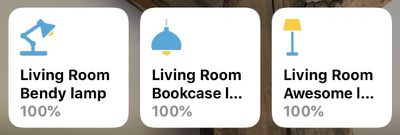
What you may not know is that you can change the icons of many third-party HomeKit accessories to something that lets you distinguish them more easily. This is a particularly good way to represent what device you have plugged into a smart switch, for instance. Here's how it works.
How to Change HomeKit Accessory Icons
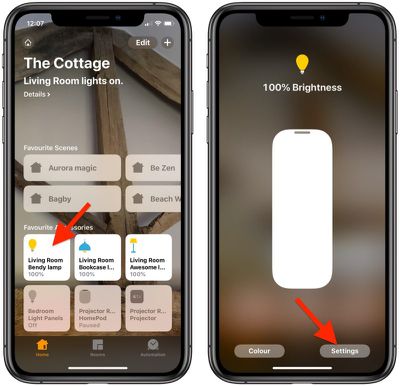
- Launch the Home app on your iPhone or iPad.
- Press and hold the accessory whose icon you would like to change.

- Tap Settings at the bottom right of the screen.
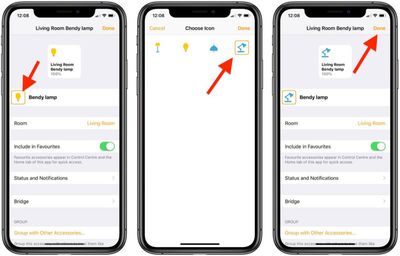
- Locate the icon next to the accessory name. If there's an orange square around the icon, you can change it. Tap it to do so.
- Choose a new icon by tapping it. In our example, you can change the default light bulb icon to a floor lamp, desk lamp, or ceiling lamp.
- Tap Done.
- Tap Done again.
- Tap once more to return to the main Home screen.
Note that you can't change the icons in the Home app for Apple devices like HomePods and Apple TVs. The same goes for some third-party accessories like thermostats for example, although it's worth checking if you're not sure.