With the release of iPadOS 13.4, Apple brought official Bluetooth mouse and trackpad support to its iPads. This article explains how to connect your chosen input device from your iPad. To learn more about how to use a connected mouse or trackpad with iPad, click here.
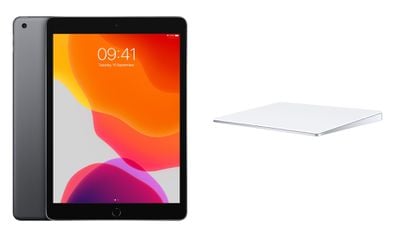
You can check that your device has been updated to iPadOS 13.4 by launching the Settings app and going to General -> Software Update. The update adds support for Magic Mouse, Magic Mouse 2, Magic Trackpad, Magic Trackpad 2, and third-party USB and Bluetooth mouse options.
How to Connect a Mouse or Trackpad to Your iPad
- Launch the Settings app on your iPad.
- Tap Bluetooth.
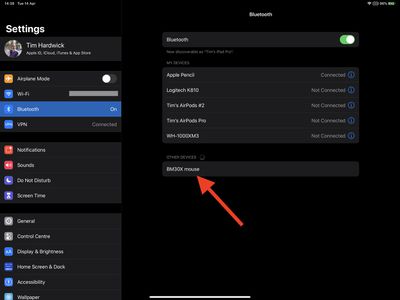
- Turn on your trackpad or mouse, then make sure it's in pairing mode and near your iPad.

- Your trackpad or mouse should appear in Bluetooth settings under Other Devices. Tap its name to connect it to your iPad.
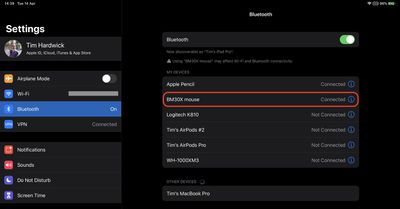
Once connected, your input device will automatically appear in the My Devices list as long as it's powered on and in close proximity.
How to Disconnect a Mouse or Trackpad From Your iPad
- Launch the Settings app on your iPad.
- Select Bluetooth.
- Tap or click the Info button (the encircled "i" icon) next to your mouse or trackpad, which will be listed under My Devices.
- Select Disconnect.
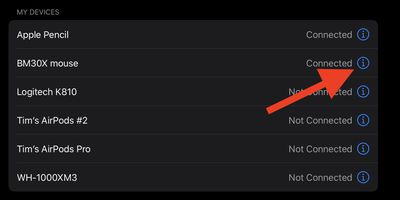
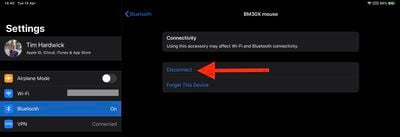
Note that you can alternatively select Forget This Device, but doing so means you'll have to manually re-pair your mouse or trackpad if you want to use it again with your iPad.