

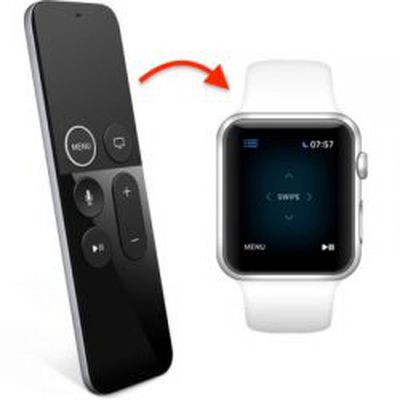
 The Siri Remote that comes with the Apple TV certainly has its critics. Some users find the glass Touch surface over-sensitive in the way it registers directional taps and swipes, which can make navigating onscreen menus a slalom-like experience where you're constantly having to correct for overshoot.
Not only that, the minimalist design of the Siri Remote isn't very tactile and there's no button backlighting, which means once you've dimmed the lights it's almost impossible to know whether you're even holding it the right way round.
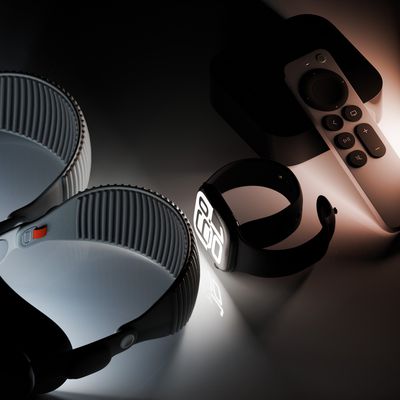
Thankfully, there are alternative (and easier) ways to control your Apple TV. One solution is to use your iPhone, which we've written about previously. Another is to use an Apple Watch. Here's how it's done.
How to Link Your Apple Watch to your Apple TV
The steps below assume your Apple Watch is running watchOS 5 and that your Apple TV has tvOS 12 installed.
Before you start, make sure your Apple TV and Apple Watch are on the same Wi-Fi network. To do this on Apple TV, launch the Settings app and navigate to Network -> Wi-Fi. Similarly on Apple Watch, launch the Settings app and tap Wi-Fi.
- Make sure you're in the same room as your Apple TV, your Apple TV is on, and you can see the screen on your TV output.
- On your Apple Watch, launch the Remote app.

- Tap Add Device.
- On your Apple Watch, enter the passcode that appears on your Apple TV's display.
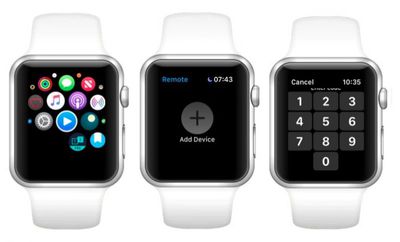
You should now see the Remote interface for controlling your Apple TV on your Apple Watch screen.
How to Control Apple TV Using Your Apple Watch
- Swipe up, down, left, or right to move through the Apple TV menu.
- Tap to choose the selected item.
- Tap Menu to go back.
- Touch and hold Menu to return to the Home screen.
- Swipe left or right to scrub through media.
- Tap to pause or resume playback.
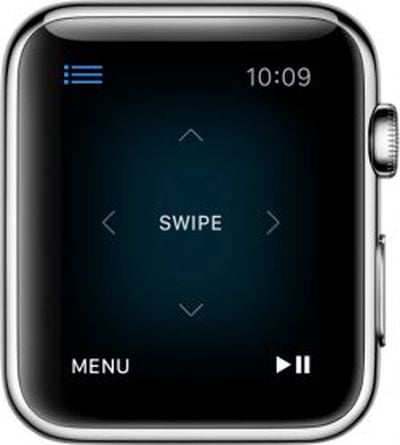
If you're anything like us, you'll find that swiping your Apple Watch to navigate Apple TV menus is much easier than using the Siri Remote – and you'll be able to see what you're doing in the dark. Just remember that as long as your Apple TV is on, you can return to the remote interface on your Apple Watch at any time simply by launching the Remote app.























Top Rated Comments
I appreciate the minimalism but the current remote has horrible ergonomics. A classic example of aesthetics before function.