In macOS Monterey, Apple allows you to change the color of the mouse pointer from the standard white outline and black fill, to pretty much any color combination you want.
So if you're having a hard time working out when it moves or changes to an insertion point, crosshair, hand, or other shape, it's worth switching things up. The following steps show you how.
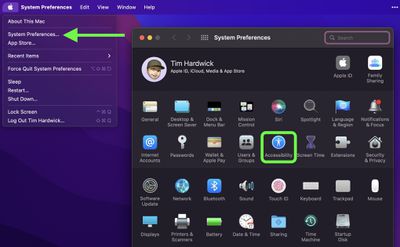
- Launch System Preferences from your Mac's Dock, from the Applications folder, or from the Apple menu bar ( -> System Preferences...).
- Click the Accessibility preference pane.

- In the side column, under "Vision," click Display.
- Click the Pointer tab in the window of options.
- Click the color swatches next to the Pointer outline color and Pointer fill color settings, then choose a custom color from the palette that appears. Any changes you make will be immediately visible.
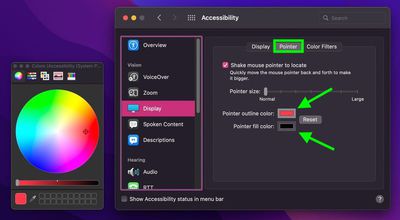
Experiment with the colors to find the combination that works for you. You can always click Reset to revert the mouse pointer to its default colors.
Related Forum: macOS Monterey