 With the release of iOS 13, Apple added a Download Manager to the mobile version of its Safari browser that's similar to the one found in Safari for Mac and Safari for Windows.
The feature helps you keep track of any currently downloading files and can also be used to navigate to the storage location of your downloads.
By default, the Download Manager file list is cleared after one day, but if you want you can change it so that successfully completed downloads clear immediately, or you can opt to clear the list manually. Here's how.
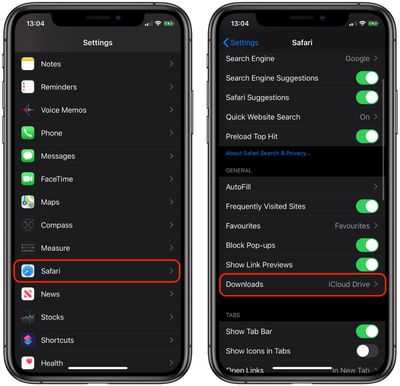
- Launch the Settings app.
- Scroll down and tap Safari.

- Tap Downloads.
- Tap Remove Download List Items.
- Select After one day (the default), Upon successful download, or Manually.
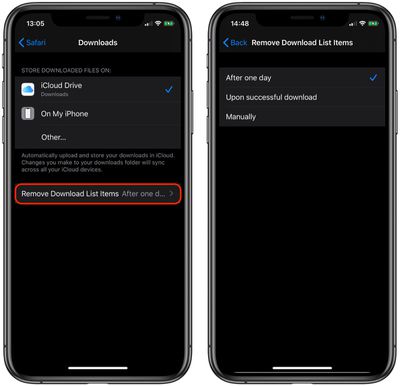
By default, Safari's Download Manager saves files in the "Downloads" section of the Files app, but you can easily change this by ticking an alternative storage location in the Downloads settings screen.
Tag: Safari
Related Forum: iOS 13