One of the perks of Fitness+ is the option to download Fitness+ videos to your library for offline viewing, a handy option if you're planning to travel somewhere that doesn't have an internet connection but you don't want to miss a workout.
First, you need to save the video that you want to download to your favorites by following the instructions in our how to on saving videos to a list. After that, downloading a video is simple.
- Open up the Fitness app on iPhone or iPad. On iPhone, tap on the Fitness+ tab.
- From the main interface, scroll all the way down to "My Workouts" to access your saved workouts.
- Tap on "Show All."
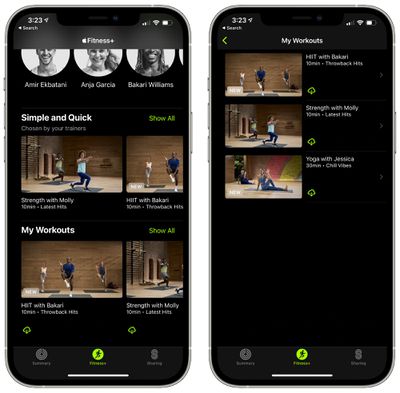
- Tap on the iCloud button next to the video that you want to download.

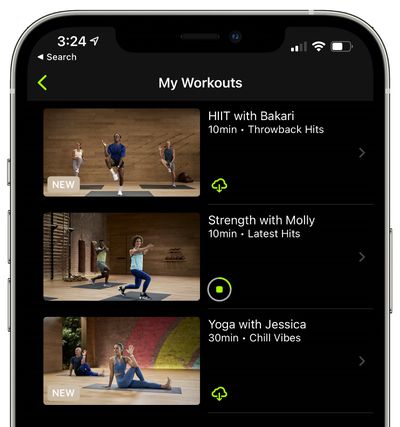
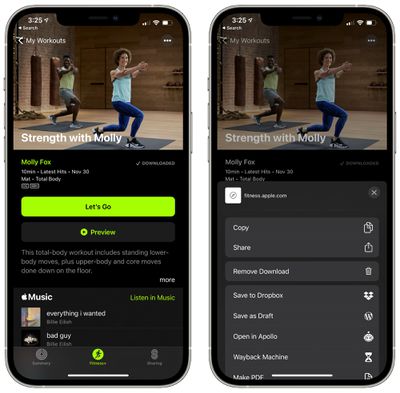
After that, the video that you downloaded will be available to watch even when there's no cellular or WiFi connection available. Videos that you've downloaded for offline viewing will have "Downloaded" listed next to them.
To delete a video, tap on the three dots in the top right corner of a video that you've downloaded and then choose the "Remove Download" option.
For more on Fitness+, make sure to check out our full Fitness+ guide.