In Apple's Pages, Numbers, and Keynote apps for iPhone and iPad, you can use the reading view feature to look at a document without accidentally editing it.
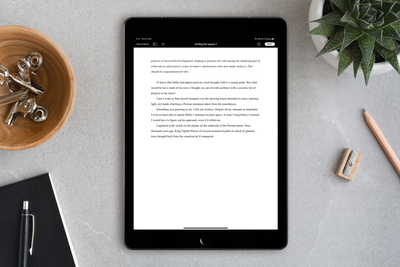
In reading view, you can scroll a document and even interact with text and objects, all while avoiding accidentally moving objects or bringing up the keyboard as you view.
To turn on the reading view, open a document in one of the aforementioned apps, then tap the reading view button in the top-right corner of the screen (the icon looks like a document with an eye in the foreground).
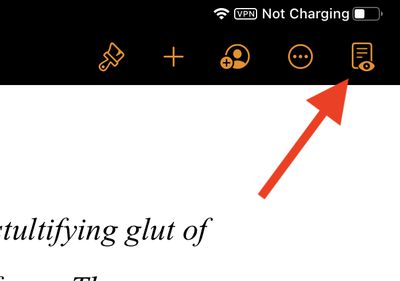
If you don't see the reading view button, tap the More button (the three dots in a circle), then tap Stop Editing.
When in reading view, you can use the More button to share, export, or print the document. In Pages specifically, you can also turn the page navigator, two-page view, and word count on or off, as well as show or hide annotations and comments.
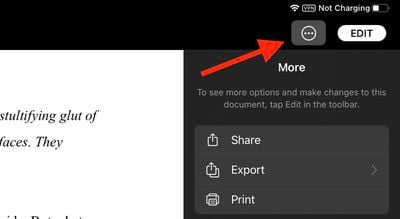
Depending on your device, tap the View Options button or the More button in Pages to access these features.
To exit reading view and start editing a document, tap the Edit button in the top-right corner of the toolbar.
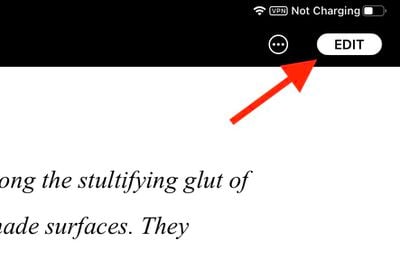
You can also start editing in reading view if you've selected text, an object, or a table. Simply double-tap text, or touch and hold an object or table, then tap Edit in the pop-up menu.