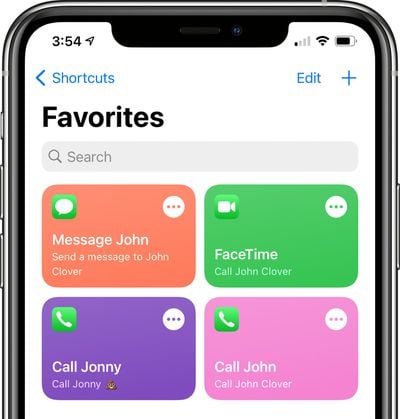
In iOS 14, Apple overhauled widgets and introduced an option for adding widgets to the Home Screen, but in the process, a well-loved Favorites widget that existed in iOS 13 was removed.
shortcutsfavorites
The Favorites widget allowed users to set certain contacts and contact methods as favorites that were easily accessible, so you could, for example, add a favorite option for messaging Eric or calling Dan, with those actions executed with a tap on the widget.

Why the Favorites widget was removed is a mystery and it could be a simple oversight with Apple planning to reintroduce it later, but for now, those who relied on the widget can recreate its functionality with Shortcuts. It takes some effort, but it may be worth the time investment if you often relied on your Favorites.

Creating a Favorites Shortcut

Making a shortcut that replicates the behavior of the Favorites widget isn't too tough, but if you want multiple favorite options, you'll need to create a separate shortcut for each one in the Shortcuts app.

  1. Open the Shortcuts app.
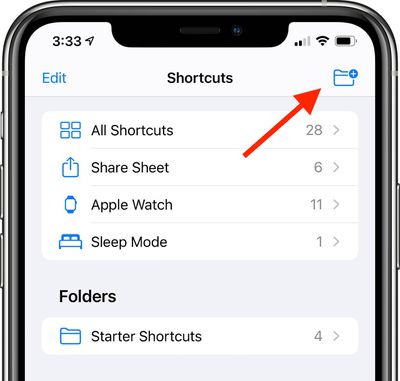
  2. Tap on the "← Shortcuts" label in the upper left hand corner.
  3. Tap on the folder icon in the top right to create a new folder. Your favorites shortcuts need to be in a folder if you want to use them with the Shortcuts widget. shortcutfoldersetup arrow
  4. Name the folder ("Favorites" in our case) and choose an icon.
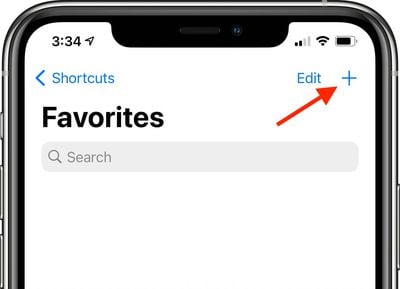
  5. Tap on the new folder ("Favorites") and then tap the "+" icon to start creating shortcuts. shortcutsfavoritefolder arrow
After this step, there are slightly different Shortcut creation methods that can be used to create quick contact options for calling, FaceTiming, and messaging someone.

Making a Shortcut to Call Someone

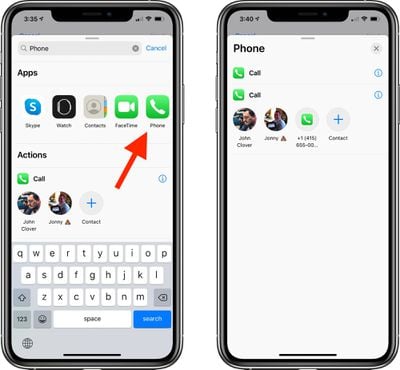
  1. Tap Add Action and then search for "Phone" or "Call."
  2. Tap the Phone app. callshortcutsetup arrow
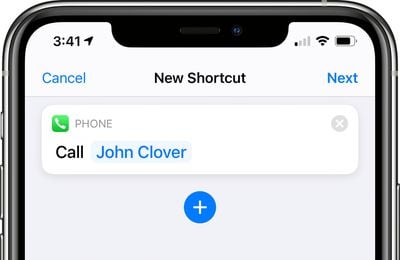
  3. Tap on one of the suggested contacts that Shortcuts offers or tap on the "+" button to select a different contact.
  4. Make sure the Shortcut you've created says Call [Contact Name]. phonecallcontactselection
  5. Tap Next.
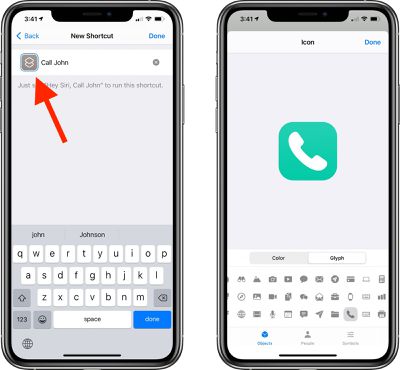
  6. Give the Shortcut a name. ("Call John" in our case)
  7. Tap the icon to the left to the name to select both a color and an icon for your Shortcut. shortcutphonecallcustom arrow
  8. Tap "Done."

After you tap Done, your shortcut to make a phone call to one of your contacts will be listed in the appropriate folder in the Shortcuts app. To activate it, just tap it and it will automatically call the intended person. Repeat these steps for anyone you want to create a call shortcut for.

Making a Shortcut to FaceTime Someone

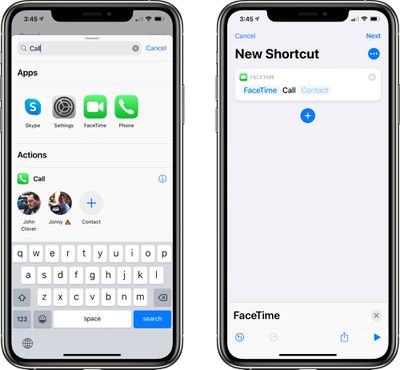
  1. Tap Add Action and then search for "FaceTime" or "Call."
  2. Tap the ‌FaceTime‌ app to get to the Shortcut editing options. facetimeshortcutsetup
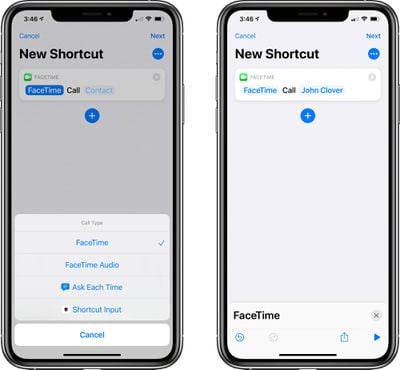
  3. Tap on "‌FaceTime‌" to select either standard ‌FaceTime‌ or ‌FaceTime‌ Audio. facetimeshortcutoptions
  4. Tap on the [Contact] blank to select a contact from the list.
  5. Make sure the Shortcut you've created says ‌FaceTime‌ [Contact Name].
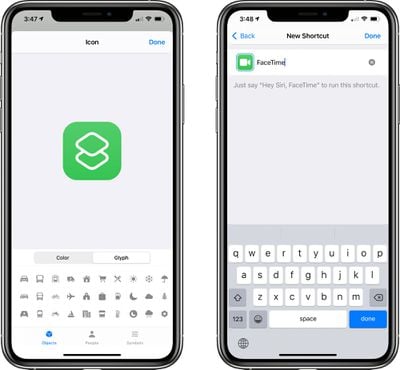
  6. Tap Next.
  7. Give the Shortcut a name. facetimeshortcutcustomization
  8. Tap the icon next to the name to select both a color and an icon for your Shortcut.
  9. Tap "Done."

When you tap this Shortcut, it will initiate a ‌FaceTime‌ call to the person that was added as the contact.

Making a Shortcut to Message Someone

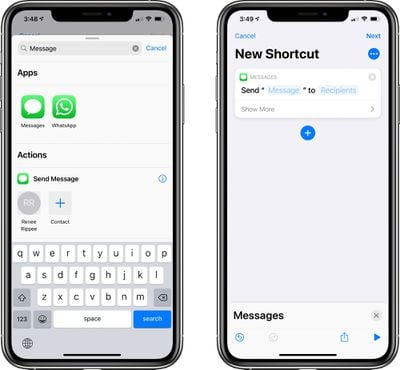
  1. Tap Add Action and then search for "Messages."messagesshortcutsetup
  2. Tap on "Send Message."
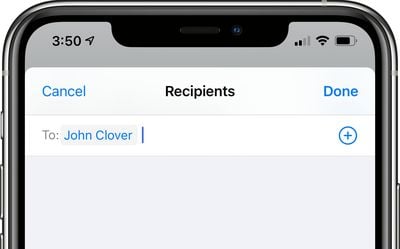
  3. Tap on the [Recipients] blank to select a contact.
  4. Type in the name of the person you want to be able to message. messagesrecipientselect
  5. Make sure the Shortcut you've created says Send "Message" to [Contact].
  6. Tap Next.
  7. Give the Shortcut a name.
  8. Tap the icon next to the name to select both a color and an icon for your Shortcut.
  9. Tap "Done."

Tapping the finished Shortcut will open up the Messages app with a compose window for the person who you added as your target contact. Note that if you want to send a message to more than one person, just type in multiple names at the part where you're entering the name of your contact.

Adding the Shortcuts Favorites Widget to Your Home Screen

Once you've created all your shortcuts for quickly sending a message, calling, or FaceTiming your contacts, you're ready to add a widget that can be accessed from the widget interface or right from the ‌Home Screen‌.

  1. Go to the iPhone's ‌Home Screen‌.
  2. Swipe over to where you want to place your new Favorite Widget.
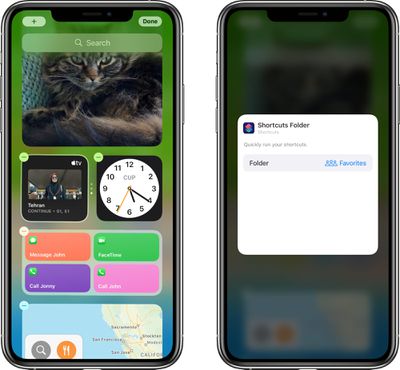
  3. Press and hold on the ‌Home Screen‌ to enter "Jiggle" Mode, and then tap the "+" button in the upper left hand corner. shortcutswidgetsetup
  4. Search for Shortcuts and tap the icon.
  5. Choose the widget you want. If you made a single favorites Shortcut, tap the single option. If you have two to four, tap the size with four, and choose eight if you have more.
  6. Tap Add Widget.
  7. Tap on the widget to customize it. shortcutsfolderselect
  8. Tap on the folder where you put all your favorites shortcuts.
  9. Tap out of the interface and tap "Done."
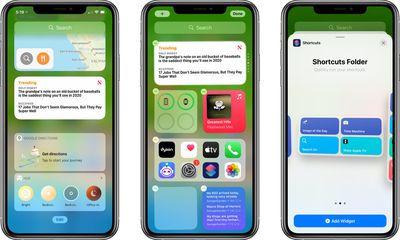
That's all there is to it. Once the Shortcuts widget is set up with the appropriate folder that contains all of your contact shortcuts, a tap on any one of the widget options will initiate the action right from the widget interface, just like the prior favorites widget.
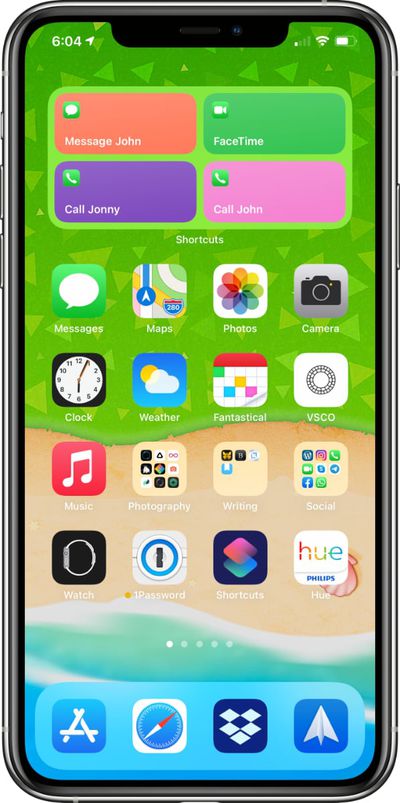
favoriteswidgethomescreen
Note that the Shortcuts widget has limited space when it comes to names, so you may need to shorten some of the Shortcut names you've created to make it clear who's going to be contacted if you have multiples.

If you need more detailed instructions on adding widgets, see our dedicated Widgets how to.

Favorites Still in the Contacts App

Just to be clear, it's the Favorites widget that's been removed, not the Favorites functionality in its entirety. You can still create and access your previously made favorite options in the Phone app under the "Favorites" tab if that's easier than making a whole bunch of Shortcuts.
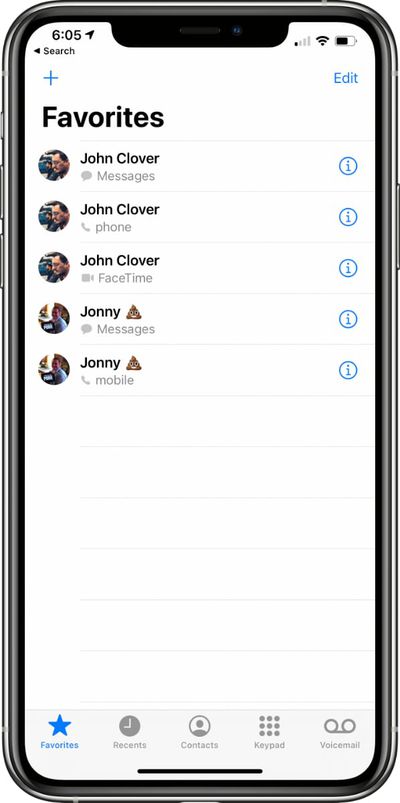
favoritesapp
For more on how to make use of widgets and the new ‌Home Screen‌ changes in iOS 14, make sure to check out our widget how to and our Home Screen guide.

Top Rated Comments

oldmacs Avatar
68 months ago
It would be great if apple could stop randomly removing things - they still haven’t made a replacement for the find my friends widget that disappeared in iOS 13 :(
Score: 7 Votes (Like | Disagree)
ignatius345 Avatar
68 months ago

I pick up my iPhone and hold the power button and say "Ha Siri, call John or message John. Why do I need widgets for this? Serious question.
Not everyone cares to talk to their phone to issue commands.
Score: 2 Votes (Like | Disagree)
JM Avatar
68 months ago
If anyone wants to get real jiggy-wit-it, you can add some lines of code in there to ask you who you want to call/text so you can have multiple people within one shortcut button.

Here we go, actually. You can set up multiple people just by hitting the plus button in the "speed dial" shortcut (under Quick Shortcuts, under Gallery)


Attachment Image
Score: 2 Votes (Like | Disagree)
Dreamboy Avatar
68 months ago
Removing the widgets from the 3DTouch app menus is the worst thing Apple has made to iOS in years. I used this shortcuts all the time to call favorites, check stocks, weather, most used chats in WhatsApp...

This didn’t take any space on the home screen and was easily accessible. Now there’s no way to do many simple things and the new widget system seems much worst. I really see iOS 14 as a downgrade from iOS 13.
Score: 2 Votes (Like | Disagree)
MikeTheBohunk Avatar
68 months ago
That's actually one notable change in iOS 14 in general: long-pressing any icon on the home screen no longer shows the associate widget for any application. The old-style widgets are now only available in the leftmost page.
Score: 1 Votes (Like | Disagree)
ignatius345 Avatar
68 months ago

Search ‘phone’ in the widgets search box or look under Apps>Contacts for the 'Phone Number' action.

I've now added a list so I can choose multiple contact options from a single popup:


Result:


Thanks, I figured that out later.

My weird workaround also works, just using the Calculator as input if you paste in the correct number.
Score: 1 Votes (Like | Disagree)

Popular Stories

Apple Wallet ID Illinois

Apple Plans to Expand iPhone Driver's Licenses to These 7 U.S. States

Wednesday December 24, 2025 8:40 am PST by
In select U.S. states, residents can add their driver's license or state ID to the Apple Wallet app on the iPhone and Apple Watch, and then use it to display proof of identity or age at select airports and businesses, and in select apps. The feature is currently available in 13 U.S. states and Puerto Rico, and it is expected to launch in at least seven more in the future. To set up the...
iPhone Top Left Hole Punch Face ID Feature Purple

iPhone 18 Pro Launching Next Year With These 12 New Features

Tuesday December 23, 2025 8:36 am PST by
While the iPhone 18 Pro and iPhone 18 Pro Max are not expected to launch for another nine months, there are already plenty of rumors about the devices. Below, we have recapped 12 features rumored for the iPhone 18 Pro models. The same overall design is expected, with 6.3-inch and 6.9-inch display sizes, and a "plateau" housing three rear cameras Under-screen Face ID Front camera in...
iOS 26

iOS 26.2 Adds These 8 New Features to Your iPhone

Monday December 22, 2025 8:47 am PST by
Earlier this month, Apple released iOS 26.2, following more than a month of beta testing. It is a big update, with many new features and changes for iPhones. iOS 26.2 adds a Liquid Glass slider for the Lock Screen's clock, offline lyrics in Apple Music, and more. Below, we have highlighted a total of eight new features. Liquid Glass Slider on Lock Screen A new slider in the Lock...
maxresdefault

Where's the New Apple TV?

Monday December 22, 2025 11:30 am PST by
Apple hasn't updated the Apple TV 4K since 2022, and 2025 was supposed to be the year that we got a refresh. There were rumors suggesting Apple would release the new Apple TV before the end of 2025, but it looks like that's not going to happen now. Subscribe to the MacRumors YouTube channel for more videos. Bloomberg's Mark Gurman said several times across 2024 and 2025 that Apple would...
maxresdefault

10 Mac Apps Worth Trying in 2026

Wednesday December 24, 2025 9:27 am PST by
2026 is almost upon us, and a new year is a good time to try out some new apps. We've rounded up 10 excellent Mac apps that are worth checking out. Subscribe to the MacRumors YouTube channel for more videos. Alt-Tab (Free) - Alt-Tab brings a Windows-style alt + tab thumbnail preview option to the Mac. You can see a full window preview of open apps and app windows. One Thing (Free) -...
Foldable iPhone 2023 Feature Iridescent Search

Samsung Developing 'Wide Fold' With iPhone Fold-Like Design Ahead of Apple's 2026 Launch

Tuesday December 23, 2025 11:55 am PST by
Samsung is working on a new foldable smartphone that's wider and shorter than the models that it's released before, according to Korean news site ETNews. The "Wide Fold" will compete with Apple's iPhone Fold that's set to launch in September 2026. Samsung's existing Galaxy Z Fold7 display is 6.5 inches when closed, and 8 inches when open, with a 21:9 aspect ratio when folded and a 20:18...
iOS 26

iOS 26.3 Brings AirPods-Like Pairing to Third-Party Devices in EU Under DMA

Monday December 22, 2025 3:20 pm PST by
The European Commission today praised the interoperability changes that Apple is introducing in iOS 26.3, once again crediting the Digital Markets Act (DMA) with bringing "new opportunities" to European users and developers. The Digital Markets Act requires Apple to provide third-party accessories with the same capabilities and access to device features that Apple's own products get. In iOS...
iphone fold 3d print

Have a 3D Printer? You Can Make Your Own iPhone Fold Dummy

Tuesday December 23, 2025 1:31 pm PST by
Apple is working on a foldable iPhone that's set to come out in September 2026, and rumors suggest that it will have a display that's around 5.4 inches when closed and 7.6 inches when open. Exact measurements vary based on rumors, but one 3D designer has created a mockup based on what we've heard so far. On MakerWorld, a user named Subsy has uploaded a 1:1 iPhone Fold replica (via Macworld), ...
iPhone Fold Vertical Feature

Why Apple's Foldable iPhone May Be Smaller Than Expected

Tuesday December 23, 2025 5:21 am PST by
Apple's first foldable iPhone, rumored for release next year, may turn out to be smaller than most people imagine, if a recent report is anything to go by. According to The Information, the outer display on the book-style device will measure just 5.3 inches – that's smaller than the 5.4-inch screen on the ‌iPhone‌ mini, a line Apple discontinued in 2022 due to poor sales. The report has led ...