Since macOS Sierra, Apple has included Siri on the Mac, enabling desktop users to ask the virtual assistant general queries and give it spoken commands.

Siri for Mac can do most of the same things Siri can do on iOS. It can give you sports scores, tell you about the weather, schedule an event in your calendar, remind you what you need to get done today or even find movie times. It can also help you with common desktop tasks, like searching for images or changing your Mac's display settings.
Siri on Mac can be invoked by clicking the Siri icon in the menu bar at the top of the screen. If it's easier, you can also use a keyboard shortcut so that your fingers don't need to leave the keys. You can customize the keyboard shortcut assigned to Siri in the following way.
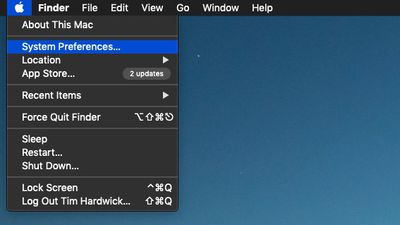
- Click the Apple () symbol in the menu bar at the top-left corner of the screen and select System Preferences....

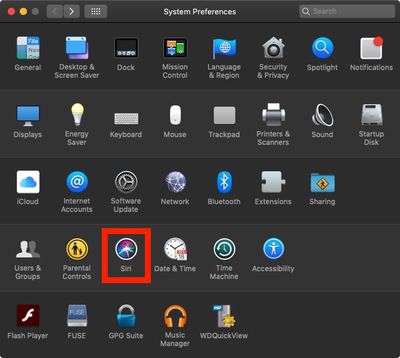
- Click the Siri icon in the preferences panel.
- Click the Keyboard Shortcut dropdown menu. The default options are Hold Command Space, Hold Option Space, and Press (fn) Function Space. You can also define your own custom shortcut by clicking Customize... and then pressing the keys you wish to use.
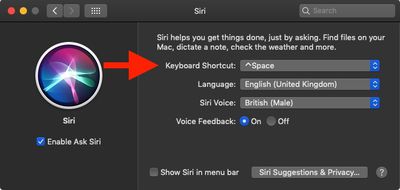
Be sure to check out the other options for Siri in the System Preferences pane, including language, voice, voice feedback, and mic input. For more information on how to use Siri in macOS, click here.