Disk Utility is Apple's go-to macOS app for finding and repairing common disk errors, but if it's your Mac's internal disk that's the problem, then your Mac might not even start up into macOS. Fortunately, in such cases you can still get to Disk Utility from macOS Recovery.

On Intel-based Macs, pressing the Command-R key combination immediately on booting invokes Recovery mode. On Macs powered by Apple silicon, such as the M1 MacBook Pro, the process is a little different, as described in the following steps.
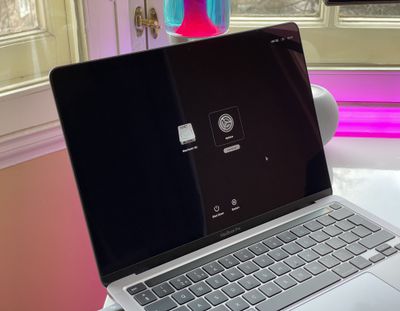
- Turn on your Mac and continue to press and hold the power button until you see the startup options window.
- Click the gear icon labeled Options.
- Click Continue.

- If prompted, select a user, then click Next and enter the password.
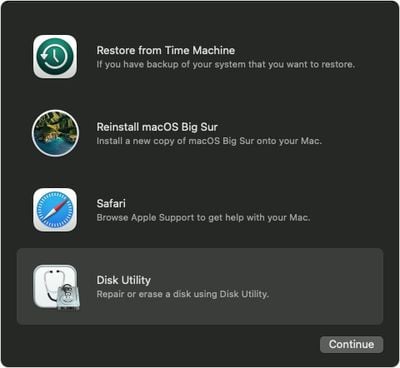
- From the utilities window in macOS Recovery, select Disk Utility and click Continue.
Repair Your Startup Disk in Disk Utility
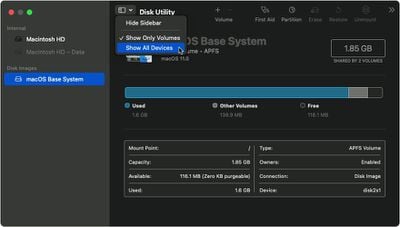
- Choose View -> Show All Devices from the toolbar in Disk Utility.
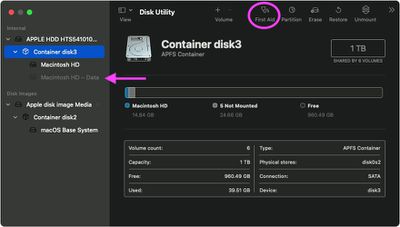
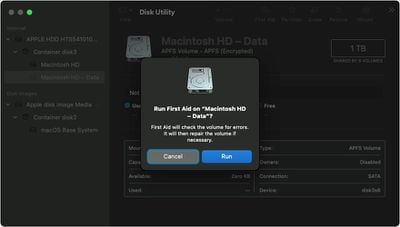
- The top disk in the side column is your internal disk. Beneath it you should see any containers and volumes on it. Start by selecting the last volume on the disk, then click the First Aid button.
- Click Run or Repair Disk to check the volume for errors. If you can't click the button, skip this step for the volume you selected.
- After Disk Utility has completed the check, select the next volume or container above it in the sidebar, then run First Aid again. Repeat this step for each volume on the disk, then each container on the disk, then lastly the disk itself.
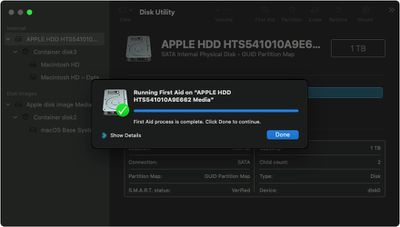
If Disk Utility found errors that it was unable to repair, you may need to erase the disk and reinstall macOS. If you don't have a separate backup of your data, contact Apple's support services for next steps.
Tag: Apple Silicon Guide