camera icon macos screenshotThere are several ways you can take screenshots on a Mac. Preview offers the option from its File menu. There's also a little screen capture app in the macOS Utilities folder called Grab. But the simplest and most common method is to use your Mac's built-in shortcut key combinations. Taking a screenshot is as easy as hitting Shift-Command-3 to capture the whole screen, or Shift-Command-4 to capture a portion of the screen using the mouse cursor as a crosshair selection tool (a tap of the spacebar also turns it into a camera for capturing windows).

If you tack the Control key onto either of these shortcuts, macOS copies the captured image to the clipboard, which is useful if you want to paste it into an application that can edit or view images. Otherwise, screenshots taken using key shortcuts are saved straight to your desktop. If you'd like to change that default save location to somewhere different, simply follow the steps below. You can also change the default file format that the screenshots are saved in by following these steps. The last section of this article offers some tips for taking more control of your screenshot selections, so be sure to check those out too.

How to Change Where Screenshots Get Saved in macOS

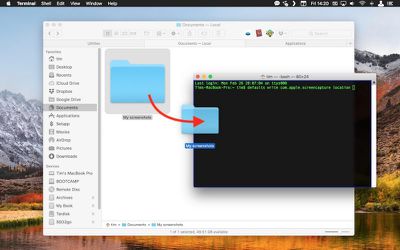
  1. Open a Finder window and press Shift-Command-N to create a new folder where you want your screenshots to be saved. Click the folder's name if you'd like to rename it.
    screenshot save location 1

  2. Launch the Terminal app (found in Applications/Utilities).

  3. Type in the following command and then press the spacebar, but don't hit Enter just yet: defaults write com.apple.screencapture location

  4. Now drag the folder you just created into the Terminal window. The folder's path should appear after the command you typed in. Press Enter.
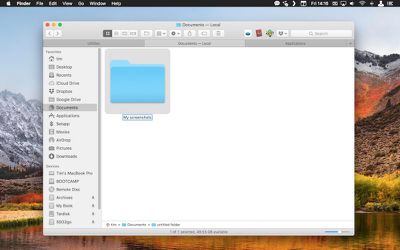
    screenshot save location 2

Your captured images will now be saved in the designated folder whenever you use the screenshot shortcuts. Note: Do not delete this folder until you've changed the save location to somewhere else using the same Terminal command, or you'll run into issues. If you want to switch things back in future so that images are saved on your desktop again, simply input the Terminal command as above, but change the path to ~/Desktop.

How to Change the Default File Format of Screenshots

  1. Launch the Terminal app (found in Applications/Utilities).

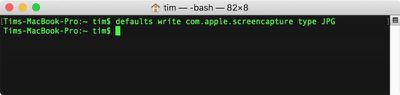
  2. To change the screenshot format to JPG, TIFF, GIF, PDF, or PNG, type in the command defaults write com.apple.screencapture type followed by a space, and then type the relevant format suffix. (We've used JPG in the example below.)
    screenshot format change

  3. Press Enter.

  4. Test if the command has been applied by taking a screenshot with Shift-Command-3. If the image is still being saved in the previous format, restart your Mac manually, or reboot by typing the Terminal command killall SystemUIServer and pressing Enter.
Tips for Taking Selection Screenshots

Tip: 1 When using the Shift-Command-4 shortcut combined with the spacebar to capture windows, you can eliminate the window's drop shadow from the screenshot by using Option-click instead of regular click.

Tip: 2 When using Shift-Command-4 to grab a portion of the screen, if you misjudge the initial point of your selection, hold down the spacebar before releasing the mouse button and you can reposition the entire selection area.

Tip: 3 When making a selection with Shift-Command-4, press the Option key before releasing the mouse button and move your mouse around to resize the dimensions of the selection area from its center point.

Tip: 4 When expanding a selection area with your mouse, hold down the Shift key to lock the dimensions of the area except for the direction that you're presently dragging in.
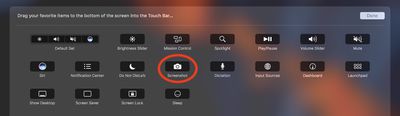
touch bar screenshot option
Bonus Tip: If you have a MacBook Pro with Touch Bar you can customize the Control Strip region to include a Screenshot button with selection options. Simply select System Preferences -> Keyboard -> Customize Control Strip, and drag the button onto the Touch Bar area.


Top Rated Comments

Mr.Seri0us Avatar
102 months ago
You can use Shift-Command-6 to capture the touch bar also...
Score: 10 Votes (Like | Disagree)
alex00100 Avatar
102 months ago
Keep doing these!
Score: 9 Votes (Like | Disagree)
calvinline Avatar
102 months ago
I like the way that IOS saves screenshots automatically to an Album in photos called Screenshots. It would be really useful to have this automatic Screenshots album on the Mac as well. (For me at least)
Score: 3 Votes (Like | Disagree)
BrettArchibald Avatar
102 months ago
Tip: 1 When using the Shift-Command-4 shortcut combined with the spacebar to capture windows, you can eliminate the window's drop shadow from the screenshot by using Option-click instead of regular click.
Now this is handy, as I do Shift-Ctrl-Cmd-4-Spacebar many times throughout any given day, but I did not know that I could eliminate the dropshadow. This tip will save me plenty of time cropping it out in Photoshop!
Score: 3 Votes (Like | Disagree)
ikir Avatar
102 months ago
Touch bar is very handy for this
Score: 1 Votes (Like | Disagree)

Popular Stories

Apple Wallet ID Illinois

Apple Plans to Expand iPhone Driver's Licenses to These 7 U.S. States

Wednesday December 24, 2025 8:40 am PST by
In select U.S. states, residents can add their driver's license or state ID to the Apple Wallet app on the iPhone and Apple Watch, and then use it to display proof of identity or age at select airports and businesses, and in select apps. The feature is currently available in 13 U.S. states and Puerto Rico, and it is expected to launch in at least seven more in the future. To set up the...
iPhone Top Left Hole Punch Face ID Feature Purple

iPhone 18 Pro Launching Next Year With These 12 New Features

Tuesday December 23, 2025 8:36 am PST by
While the iPhone 18 Pro and iPhone 18 Pro Max are not expected to launch for another nine months, there are already plenty of rumors about the devices. Below, we have recapped 12 features rumored for the iPhone 18 Pro models. The same overall design is expected, with 6.3-inch and 6.9-inch display sizes, and a "plateau" housing three rear cameras Under-screen Face ID Front camera in...
maxresdefault

Where's the New Apple TV?

Monday December 22, 2025 11:30 am PST by
Apple hasn't updated the Apple TV 4K since 2022, and 2025 was supposed to be the year that we got a refresh. There were rumors suggesting Apple would release the new Apple TV before the end of 2025, but it looks like that's not going to happen now. Subscribe to the MacRumors YouTube channel for more videos. Bloomberg's Mark Gurman said several times across 2024 and 2025 that Apple would...
maxresdefault

10 Mac Apps Worth Trying in 2026

Wednesday December 24, 2025 9:27 am PST by
2026 is almost upon us, and a new year is a good time to try out some new apps. We've rounded up 10 excellent Mac apps that are worth checking out. Subscribe to the MacRumors YouTube channel for more videos. Alt-Tab (Free) - Alt-Tab brings a Windows-style alt + tab thumbnail preview option to the Mac. You can see a full window preview of open apps and app windows. One Thing (Free) -...
iOS 26

iOS 26.2 Adds These 8 New Features to Your iPhone

Monday December 22, 2025 8:47 am PST by
Earlier this month, Apple released iOS 26.2, following more than a month of beta testing. It is a big update, with many new features and changes for iPhones. iOS 26.2 adds a Liquid Glass slider for the Lock Screen's clock, offline lyrics in Apple Music, and more. Below, we have highlighted a total of eight new features. Liquid Glass Slider on Lock Screen A new slider in the Lock...
airpods color prototypes

Apple Tested AirPods in Bright Colors

Saturday December 27, 2025 6:06 am PST by
Apple reportedly tested a version of the first-generation AirPods with bright, iPhone 5c-like colored charging cases. The images, shared by the Apple leaker and prototype collector known as "Kosutami," claim to show first-generation AirPods prototypes with pink and yellow exterior casings. The interior of the charging case and the earbuds themselves remain white. They seem close to some...
iPhone Fold Vertical Feature

Why Apple's Foldable iPhone May Be Smaller Than Expected

Tuesday December 23, 2025 5:21 am PST by
Apple's first foldable iPhone, rumored for release next year, may turn out to be smaller than most people imagine, if a recent report is anything to go by. According to The Information, the outer display on the book-style device will measure just 5.3 inches – that's smaller than the 5.4-inch screen on the ‌iPhone‌ mini, a line Apple discontinued in 2022 due to poor sales. The report has led ...
Foldable iPhone 2023 Feature Iridescent Search

Samsung Developing 'Wide Fold' With iPhone Fold-Like Design Ahead of Apple's 2026 Launch

Tuesday December 23, 2025 11:55 am PST by
Samsung is working on a new foldable smartphone that's wider and shorter than the models that it's released before, according to Korean news site ETNews. The "Wide Fold" will compete with Apple's iPhone Fold that's set to launch in September 2026. Samsung's existing Galaxy Z Fold7 display is 6.5 inches when closed, and 8 inches when open, with a 21:9 aspect ratio when folded and a 20:18...
iPhone SE Cosmopolitan Clean

Apple Discontinued These 25 Products This Year

Wednesday December 24, 2025 7:24 am PST by
With the end of 2025 near, the time has come to look back at the devices and accessories that Apple discontinued throughout the year. Most of the products that were discontinued this year were simply replaced by a new model with an updated chip. However, the iPhone SE line was entirely discontinued when the iPhone 16e launched, and the iPhone Plus line is being phased out. Below, we have...