 On iPhone and iPad, Apple allows you to set a custom alert tone for text messages received from a specific person in your contacts.
Setting a special message alert tone for someone in your Contacts app enables you to recognize when that particular person has sent you a text, without you even having to look at your iPhone or iPad screen.
To know instantly when someone specific has sent you a text message, follow these steps.
How to Assign a Custom Text Alert Tone to a Contact
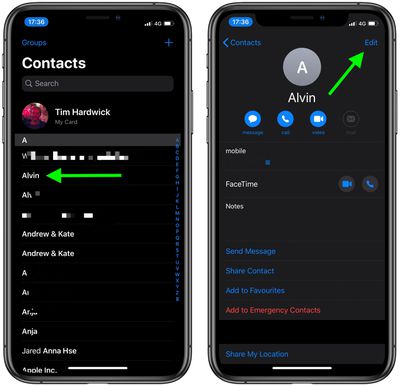
- Launch the Contacts app on your iPhone.
- Select a contact from the list.
- Tap Edit in the top-right corner of the screen.

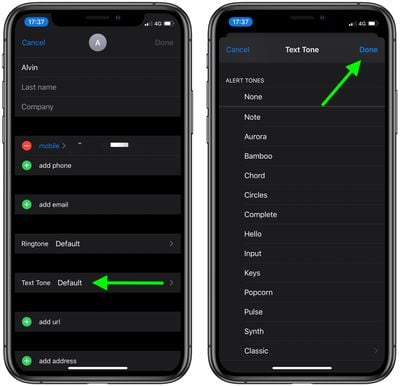
- Tap Text Tone.
- Choose one of the sounds that you want to use below Alert Tones.
- Tap Done in the top-right corner of the screen.
- Tap Done again.
Did you know that you can also assign custom alert tones for your WhatsApp contacts? Check out our separate guide to learn how.
Tag: Contacts