

If you are one of the lucky few to receive your Apple Watch on launch day, you are probably excitedly going through the steps to setting up and customizing your device. With a completely new operating system to get used to, we’ve got a couple of tips for getting your Apple Watch ready for daily use.
Apple Watch Overview
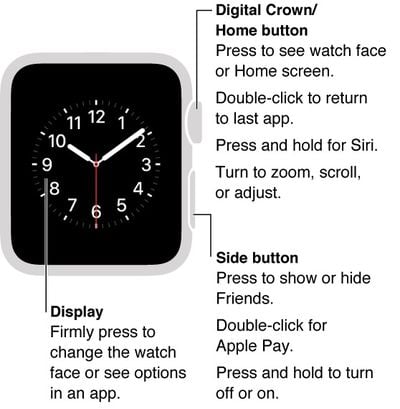
Apple yesterday released a user guide for its wrist-worn device that provides a detailed overview of the case for those who aren't yet familiar with various features. For starters, you can easily identify the Digital Crown/Home button on the side of the watch case. Press it to go to the Home screen while viewing an app, or to display the watch face.
You can also double-click the Digital Crown to access your most recently used app. To activate Siri, press and hold it. Zoom in and out or scroll by turning the crown.
The side button, which sits just below the Digital Crown is used to show or hide friends, turn on or off Apple Watch, and access Apple Pay (with a double-click).
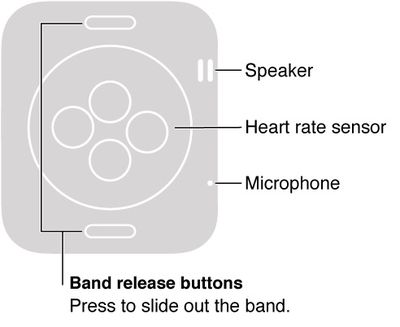
The back side of the case houses the speaker, heart rate sensor, and microphone. You will also be able to remove your watch band by pressing the band release buttons on the back of the case.
Setting Up Apple Watch
- Charge Apple Watch (if it needs it). Your watch should generally arrive with at least 50 percent charge to get you going right out of the box.
- Press the Home button on the Digital Crown to start up the watch and following the prompts to select a language and proceed.
- Pair your Apple Watch with your iPhone.
- Open the Apple Watch app on iPhone to access your apps and customize your experience. During the setup process, you will be asked whether you want to automatically install all Apple Watch-compatible apps or manually select apps for installation.
Customizing Apple Watch
The Apple Watch app on your iPhone lets you customize notifications, app layout, and more. You can also use it to set up Apple Pay and access the App Store so you can download compatible Apple Watch apps. Open the Apple Watch app on your iPhone and tap "My Watch" to access the customizable settings.
For Apple Pay, you'll need to set up each card manually as you did on your iPhone, and the process will generally involve a confirmation step such as an activation code sent via email/text or a call to your bank to verify each card for use. Once your cards are set up, you can use Apple Pay from your watch even without your iPhone present.
Fine-Tune Apple Watch Settings
You may want to tweak the settings a bit if you discover that the alerts are too loud, the text is too small, or the screen is too bright, so head to the Settings app to make these adjustments.
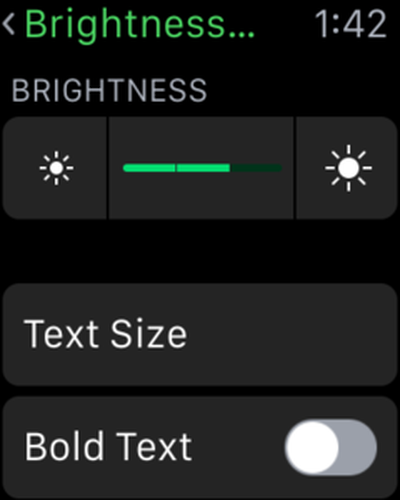 Adjust Brightness
- On Apple Watch, open the Settings app.
- Scroll down to Brightness & Text Size.
- Tap the Brightness symbol.
- Turn the Digital Crown to adjust.
- Or, access the settings from the Apple Watch app on the iPhone under My Watch
Adjust Text Size
- On Apple Watch, open the Settings app.
- Scroll down to Brightness & Text Size.
- Tap Text Size.
- Turn the Digital Crown to increase or decrease the size of the font
- Toggle the Bold Text switch to the On position to make text bold. Apple Watch will reset after turning on or off Bold Text.
- Or, access the settings from the Apple Watch app on the iPhone under My Watch.
 Adjust Sound
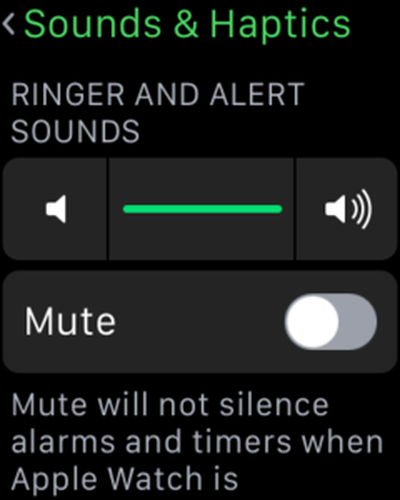
You can increase or decrease the volume of the ringer and alerts on Apple Watch, or mute everything.
- On Apple Watch, open the Settings app.
- Scroll down to Sounds & Haptics.
- Tap the volume button under Ringer and Alert Sounds.
- Turn the Digital Crown to adjust the volume.
- To mute Apple Watch, toggle the mute switch to the On position.
- You can also mute Apple Watch by swiping up on the watch face. Swipe to the Settings glance, then tap the mute button.
- Or, Access the settings from the Apple Watch app on the iPhone under My Watch.
You can quickly mute a new alert or notification sound by placing the palm of your hand over the watch display and holding it there for three seconds. This feature is great when you forget to silence your Apple Watch before going into a meeting.
You must turn the feature on to use it.
- Open the Apple Watch app on your iPhone.
- Tap My Watch.
- Tap Sounds & Haptics.
- Toggle the Cover to Mute switch to the On position.
 Turn on Do Not Disturb
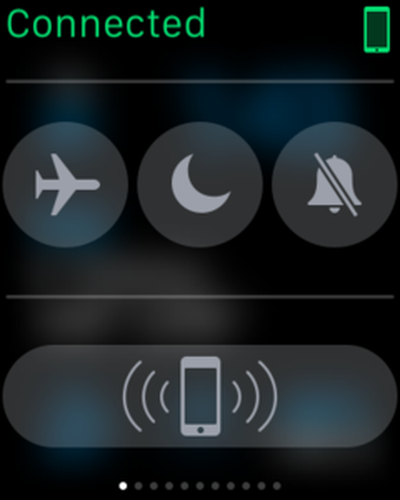
You can silence every aspect of Apple Watch, including screen lighting, using Do Not Disturb. You can specify a time period for the feature to turn on and off, designate certain contacts that can be filtered through, and quickly flip it on for a temporary silence.
- Swipe up on the watch face
- Swipe left or right to access the Settings glance.
- Tap the Do Not Disturb button.
- Or, on Apple Watch, open the Settings app.
- Tap Do Not Disturb.
- Toggle the switch to the On position.
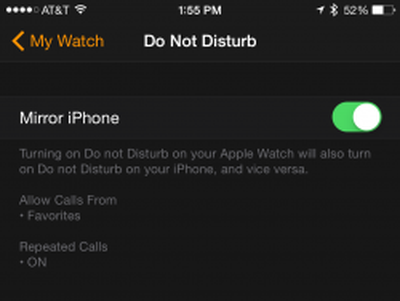 You can also silence both your iPhone and Apple Watch at the same time from the Apple Watch app on your iPhone.
- Open Apple Watch app on iPhone
- Tap My Watch.
- Turn on Do Not Disturb.
- Then, turn on Mirror iPhone.
- Any time you change Do Not Disturb on iPhone or Apple Watch, the other will match it.
As a brand-new platform, there is a lot for users to learn about Apple Watch, and it takes some getting used to with multiple types of interaction methods. This guide is just a starting point for after you take it out of the box and before you leave the house, and we’ll keep you updated with more how-to guides to help you get the most out of your Apple Watch.


















Top Rated Comments
Won't matter!
The haptic feedback scared me at first lol. Felt weird. It's enjoyable now though each time I get a message. I almost want to enable a ton of notifications from more apps just so I can get it to do this more often haha. I currently have it set to just the notifications that are most important such as texts, bill reminders, calls, and such.
Great product and I can see getting an enormous amount of use out of it, happy I was able to get it on launch day!