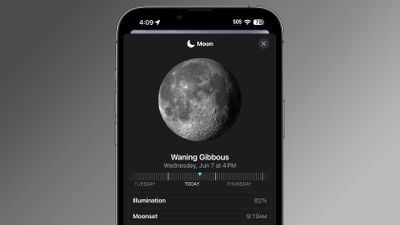
In iOS 17, Apple has made some improvements to its stock Weather app, such as the ability to view the previous day's weather, and a new moon module that talls you the phases of the moon.
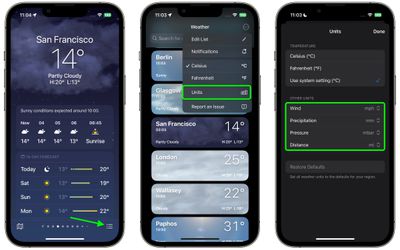
In addition to the ability to view temperature in Celsius and Fahrenheit, you can also now change the unit measurements for wind speed, precipitation, pressure, and distance.
The following steps show you how it's done on iPhones running iOS 17.
- In the Weather forecast view, tap the three-lined icon in the bottom-right corner of the screen.
- On the forecast locations screen, tap the circular icon containing three dots in the top-right corner of the screen.
- Select Units in the dropdown menu.
- Under the "Other Units" section, use the options to choose your unit preferences for Wind, Precipitation, Pressure, and Distance.
That's all there is to it. Your unit preferences will be set for all locations stored in Apple's Weather app, and will be reflected in any Weather widgets you use on your iPhone's Home Screen.
Tag: Apple Weather