

In macOS, you can sync any files on your Mac desktop and in your documents folder to iCloud so that you can access them on any other devices signed in to iCloud with the same Apple ID.
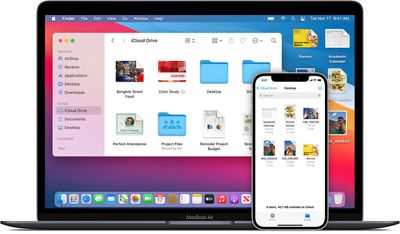
In other words, you can start a document on your Desktop, and you'll be able to work on it later on your iPhone or iPad, or even through a browser on another computer via the iCloud website.
Here's how to turn on Desktop and documents folder syncing in macOS Big Sur.
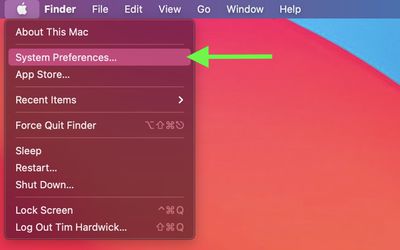
- On your Mac, click the Apple symbol () in your menu bar and select System Preferences....

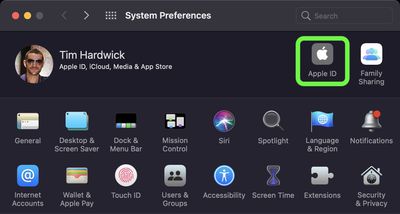
- Click Apple ID.
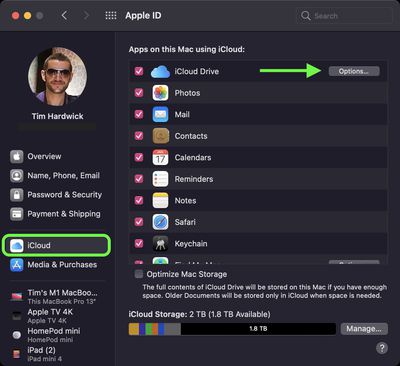
- Select iCloud in the side column, and make sure iCloud Drive is turned on (the tick box should be checked), then click Options....
- Check the box next to Desktop & Documents Folders to enable it.
- Click Done.
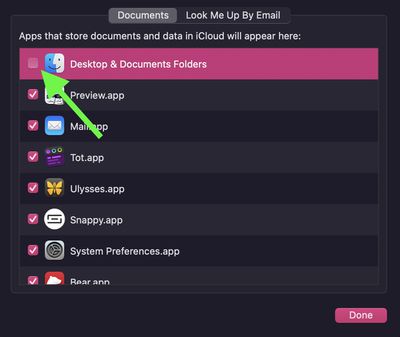
If you decide you don't like Desktop and Documents folder syncing in iCloud, you can easily stop syncing by following the above steps and unchecking the box next to Desktop & Documents Folder (step 5).
Note that if you disable syncing, Desktop files will no longer appear on the desktop of any other Macs you own, but they'll remain available in a folder on your iCloud Drive, and a new Desktop and Documents folder is created on your Mac in the home folder. You can move files from iCloud Drive to your Mac as you need them, or select all of your files and drag them to the place you want to keep them.




















