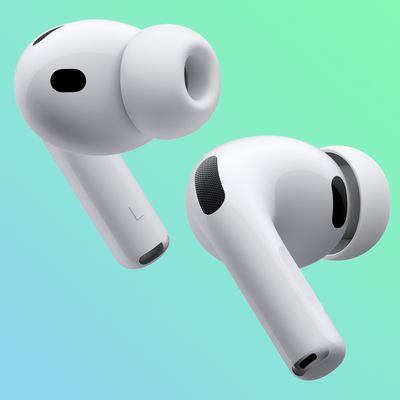
This article explains how to unpair first-generation and second-generation AirPods from a number of different Apple devices.
Bear in mind that when you unpair AirPods from an iPhone, Apple Watch, Mac, or Apple TV (fourth-generation or later), this also automatically unpairs the wireless earphones from all other devices linked to the same iCloud account.
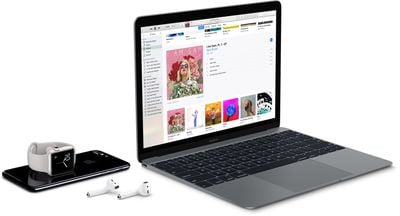
Other devices you may have paired them with that aren't linked to iCloud (older Apple TVs, Windows PCs or Android devices, for example) will remain unaffected unless you manually unpair them one by one via their respective Bluetooth settings.
How to Unpair AirPods From iPhone or iPad
- Launch the Settings app.
- Tap Bluetooth.
- Tap the "i" icon next to your AirPods in the Devices list.

- Tap Forget This Device.
- Tap Forget Device in the pop-up message to confirm.
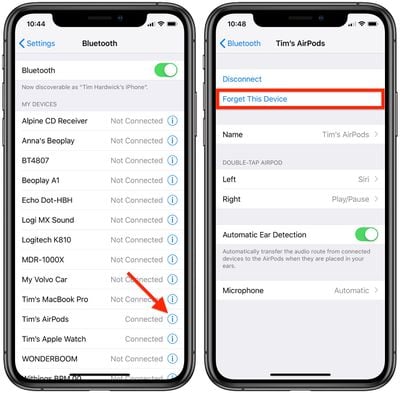
Note that unpairing AirPods from your iPhone also unpairs them from your Apple Watch, however you can also individually unpair AirPods from Apple Watch without unpairing them from your iPhone.
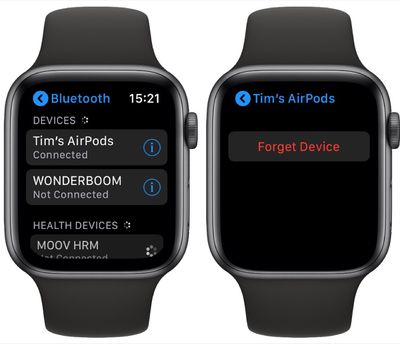
How to Unpair AirPods From Apple Watch
- On your Apple Watch, launch the Settings app.
- Tap Bluetooth.
- Tap the "i" icon next to your AirPods in the list.
- Tap Forget Device.
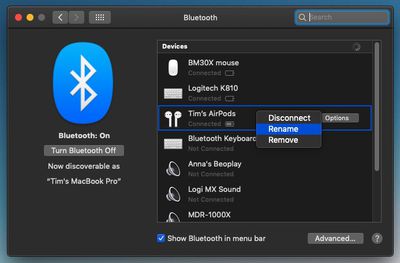
How to Unpair AirPods From Mac
- On your Mac, click the Apple icon in the menu bar and select System Preferences....
- Click the Bluetooth icon in the preference pane.
- Right-click (or Ctrl-click) your AirPods in the Devices list.
- Click Remove in the contextual menu that appears.
- Click Remove again to confirm.
How to Unpair AirPods From Apple TV
- On your Apple TV, launch the Settings app.
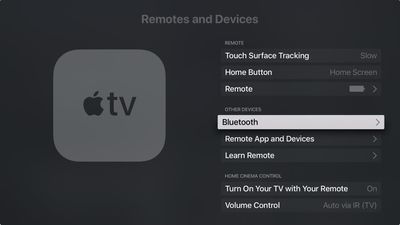
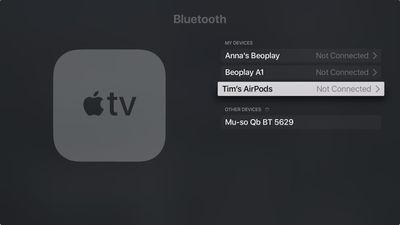
- Select Remotes and Devices -> Bluetooth (or General -> Bluetooth on third-generation Apple TV or earlier models).
- Select your AirPods in the Devices list.
- Select Forget Device.
- If necessary, select Forget Device again to confirm.