In iOS 17, the Automatic AirPlay feature that was available for TVs in iOS 16 has expanded to include speakers as well. Here's how to control the new AirPlay functionality.
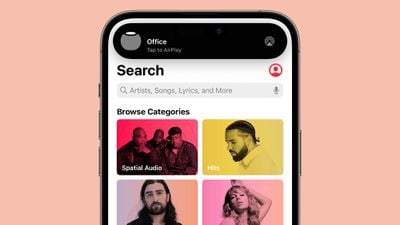
Previously in iOS 16, Apple allowed iPhones to discover and automatically connect to any frequently used Apple TV or smart TV with AirPlay support when playing content from apps that you regularly used with AirPlay.
Now in iOS 17, Apple has built on the feature so that you can now opt to let your iPhone automatically connect to nearby speakers when playing content from your favorite AirPlay-supporting apps. The following steps show you how to enable and disable the feature.
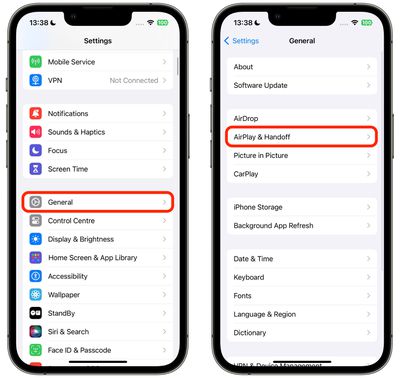
- Open the Settings app on your iPhone.
- Tap General.
- Tap AirPlay & Handoff.

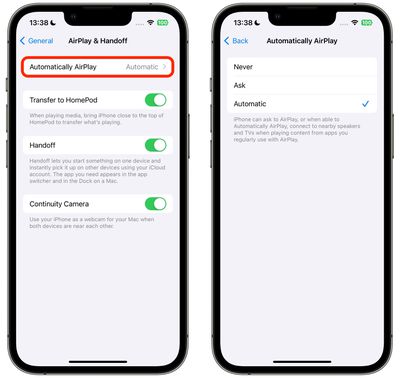
- Tap Automatically Airplay.
- Select from Never, Ask, and Automatic.
That's all there is to it. In another AirPlay-related new feature, Apple is teaming up with hotel chains and TV manufacturers to introduce smart TV sets that will let hotel guests automatically AirPlay content from their Apple devices to the hotel TV.
The option will let guests watch their own TV shows and movies without having to sign into streaming accounts on shared televisions, providing more security for viewing content when traveling.
IHG Hotels and Resorts will be the first hotel company to bring AirPlay to its hotels, and LG plans to introduce AirPlay-compatible smart TVs designed specifically for use in hotels.