In iOS 17, Apple has added several new features to its Messages app to make communicating with other Apple users more creative and fun. One such feature is the ability to use emoji as stickers. This article shows you how it's done.
Stickers have been in the Messages app for years now, but not much has changed about them - until now. That's because in iOS 17 Apple treats all standard emoji as stickers, allowing them to be used in just the same way as actual stickers.
What that essentially means is that you are no longer limited to inserting them in a conversation. Now you can also drag them anywhere on a message bubble. You can even layer them on top of one another to create little emoji scenes.
The following steps show you how it works in iOS 17.
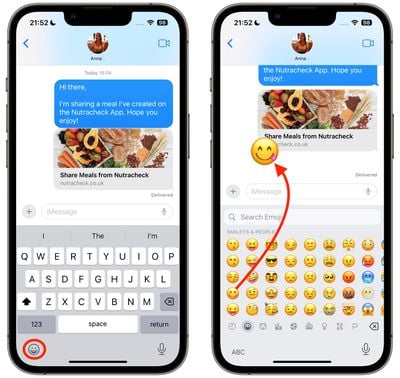
- In a Messages conversation, tap the Emoji button in the bottom-left corner of the screen.
- Press and hold on an emoji in the list, then drag it up onto the message bubble that you want to react to and release your finger. (Note that you can drag more emoji onto the same message bubble with the same action.)

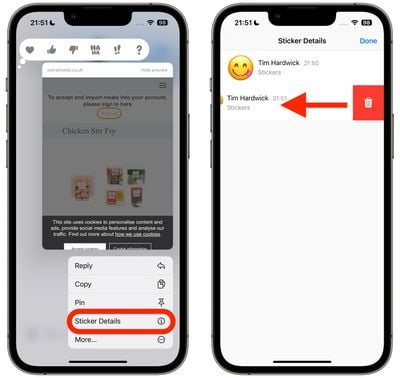
- To edit emoji stickers on a message bubble, press and hold the emoji, then tap Sticker Details in the popup menu.
- To delete an emoji sticker, swipe left on it, then tap the red Trash button that appears.
- Tap Done to return to the conversation.
That's all there is to it. Did you know that another new feature is the ability to turn Live Photos into Live Stickers? Click the link to learn how it's done.