In iOS 15, Apple's native Photos app features a considerable update to Memories, including a new design, integration with Apple Music, a more interactive interface, and "Memory Looks." This article explains what Memory Looks are and how you can apply them to your own Memories in the Photos app.
In the latest version of the Photos app, Apple has added the ability for users to customize the look of photos and videos that feature in its auto-generated Memories. These "Memory Looks" are basically photo/video filter and can add a particular mood to the content of Memories.
There are 12 Memory Looks that you can choose from. Each one works by analyzing each photo and video, and applying the correct amount of contrast and color adjustment for a consistent look. Here's how you can add them to your Memories in iOS 15.
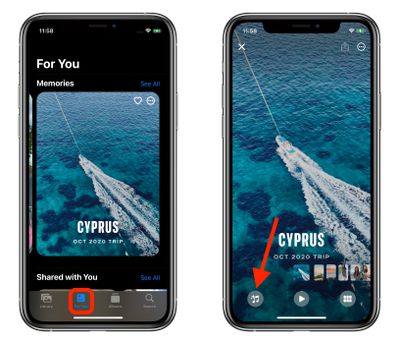
- Launch the Photos app on your iPhone or iPad.
- Tap the For You tab.
- Under the Memories section, select a Memory you want to edit.
- Tap the playing Memory and pause it, then tap the Memory Mixes icon in the lower left corner (it looks like a musical note with stars).

- Tap the Memory Looks icon in the lower right corner (it looks like three overlapping circles or a Venn diagram).
- Tap a Memory Look thumbnail preview to select it.
- Tap Done in the upper right corner to apply your selection.
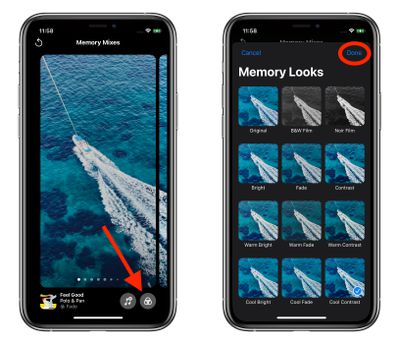
Tip: On the Memory Mixes screen, if you swipe left or right, the Photos app will use machine learning to marry suggested music tracks from Apple Music with different Memory Looks that may go together.