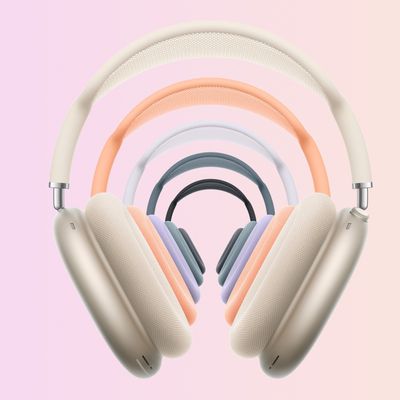
Apple's AirPods Max over-ear headphones include a feature called Automatic Head Detection that allows the audio routed from a connected device to seamlessly switch to AirPods Max the moment you put the headphone cups on your ears.

This also means AirPods Max can automatically pause the audio track when you remove the headphones, and resume playback when you put them back on again, ensuring you won't miss a thing.
The feature is enabled by default, but if you want to you can manually disable it once you've connected the AirPods Max to an iPhone or iPad. Just note that once you do, you'll have to manually play/pause audio routing to the AirPods Max whenever you take them off or put them on.
- Make sure the AirPods Max headphones are connected to your iOS device.
- Launch the Settings app on your iPhone or iPad.
- Tap Bluetooth.
- Tap the Info (i) button next to the name of your AirPods Max headphones.
- Toggle off the switch next to Automatic Head Detection.
You can also reverse the direction of the volume controls on AirPods Max if you keep turning the Digital Crown in the wrong direction.