

Nanoleaf's new 12-sided light-up remote joins its existing Nanoleaf Light Panels and Nanoleaf Rhythm, adding a whole slew of smartphone-free physical control options for your HomeKit setup in one easy-to-use accessory.
The Nanoleaf Remote is bigger than button and remote devices from other companies, but it offers access to many more scenes and as you'll see in my review, it's a great value if you already own a Nanoleaf setup and want a simple iPhone-free control method that anyone in the household can use.
For people unfamiliar with Nanoleaf, the company makes the Nanoleaf Light Panels, a HomeKit-enabled set of flat, triangle-shaped lights that connect together in a range of different user-designed configurations, providing both light and art. The Light Panels have LEDs inside and can be set to display dozens of different colors and patterns, which make up different light recipes.
I've had a Nanoleaf setup for more than a year, and it continues to be one of my favorite HomeKit products. The Remote is specifically designed for users who already have Nanoleaf Light Panels.
Design
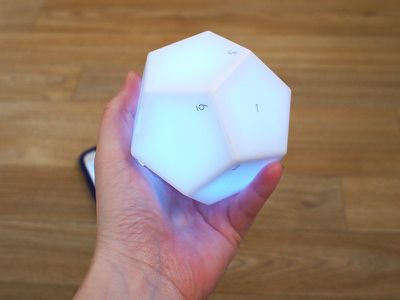
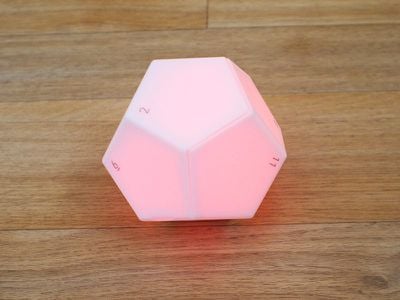
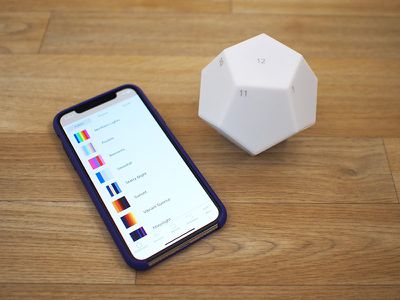
Nanoleaf's Remote has a design that's not quite like any other HomeKit-enabled remote-style device on the market, with dodecahedron shape where each side activates a different scene.
The remote, which is a little bigger than palm sized, is made from a white plastic that admittedly feels a bit cheap, but it doesn't look bad sitting on a desk.
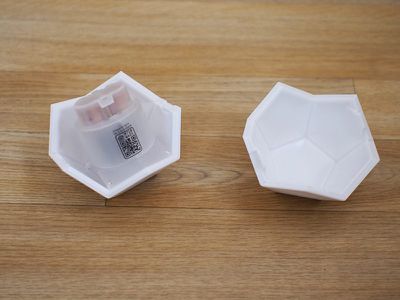
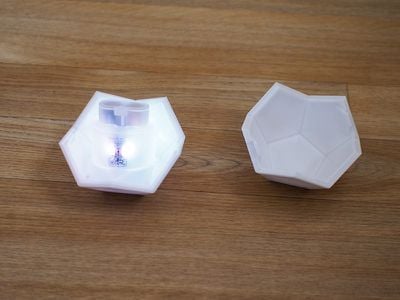
When the remote arrives, it comes in two halves, with one empty side and a one side that houses the batteries, an LED light, and the mechanism that provides a slight vibration whenever a new scene is activated. Two AA batteries (included in the package) fit into the battery compartment to provide power.
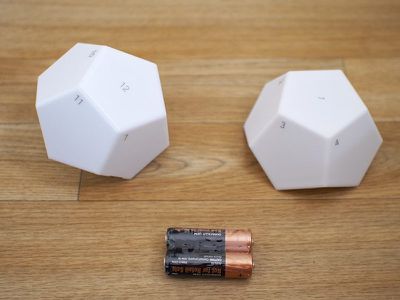
Once the batteries have been inserted, the two halves of the remote snap together. I wasn't quite able to get a perfect, seamless fit between the two halves, but that could be operator error.
I'm not sure how long the batteries are meant to last, but after about two weeks of use, the battery level is down to 85 percent. I suspect the batteries will need to be swapped out every few months, which is similar to other battery-powered HomeKit devices I own.
Setup
Setting up the Remote took less than 30 seconds using the Nanoleaf app, and it was as simple as the setup for any other HomeKit product. Under the Remote section of the app, there's an "Add Accessory" option, which requires the HomeKit code on the inside of the Nanoleaf Remote to be scanned. Once that's complete, the Remote is added to a HomeKit setup and scenes can be set either in the Nanoleaf app or the Home app.
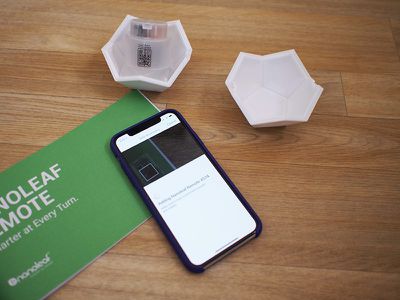
On iOS devices, the Nanoleaf Light Panels and the Nanoleaf Remote work over HomeKit, and a HomeKit setup is required. You can also pair the Remote to the Nanoleaf Rhythm, however, which is required to enable full functionality, such as brightness controls. Sans a Nanoleaf Rhythm, which connects to the Light Panels to allow them to respond to sound, adjusting brightness does not work.
Pairing the Remote to both a HomeKit setup and to the Nanoleaf Rhythm will result in some error warnings in the Nanoleaf app. These error warnings exist because the dual pairing creates a disconnect between changes made to the programmed scenes in HomeKit and in the Nanoleaf app.
For example, if you set a "Good Night" scene to one of the sides in the Home app and then set a different scene to the same side in the Nanoleaf app, it won't sync and one will overrule the other. This wasn't a problem in daily use because I stuck to making changes only in the Home app, but I did find it confusing. Nanoleaf says improvements will be made to the app and the website to better explain this conflict to Remote users.
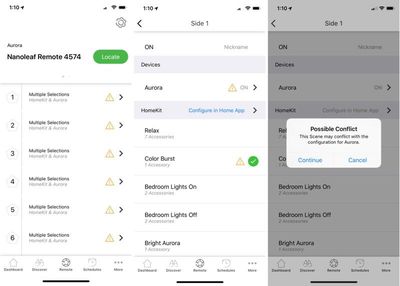
According to Nanoleaf, you will need a Home Hub to use the Remote on iOS devices, which means you'll need to have a HomePod, Apple TV, or iPad connected to HomeKit.
Usage and App
Activating a scene with the Nanoleaf Remote is done by lifting it up, turning it to one of the sides of the dodecahedron, and then setting it back down. A couple of seconds after you place it down, it will vibrate, light up, and the scene on the side that's facing up will activate.
Each side of the remote lights up with a unique color when it's activated and there's also a number for each side in one corner, so it's easy to tell one side from another. You'll need to memorize which number does what, but it only takes a couple of days to learn your scenes unless you're changing them frequently.
I love the light built into the remote, and I wish that I could set it to be on all the time, but that would probably kill the battery too fast. As it is, it's white most of the time with the colors only displayed when you rotate it.
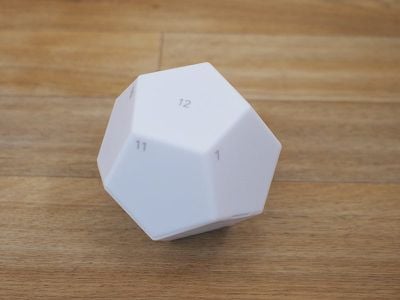
The Nanoleaf Remote accurately recognized each side of the dodecahedron and I didn't have problems accidentally activating scenes I didn't mean to. A scene will activate based on which side is up when you stop rotating, so keep that in mind. It takes a second or two between when the remote is rotated and when a scene activates.
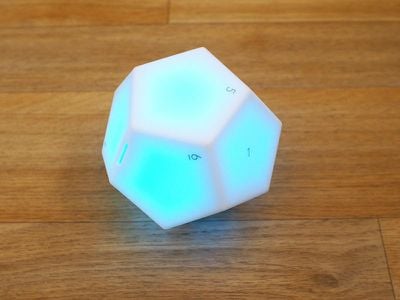
In addition to rotating the remote to different sides to activate HomeKit scenes, if you pair it to a Nanoleaf Rhythm, you can twist it clockwise or counterclockwise to change the brightness of the Nanoleaf Light Panels. A clockwise turn makes the Light Panels brighter, while a counterclockwise turn makes them dimmer.
Controlling brightness this way was convenient and worked well, but it was easiest to do turning the Nanoleaf Remote while it was on a desk or other flat surface rather than while in my hand.
Within the Home app (or the Nanoleaf app) a HomeKit scene (or multiple HomeKit scenes) can be assigned to each side of the Remote. While other buttons like this have different gestures listed, Nanoleaf's are all single press because the scenes are activated through rotations rather than different presses.
If you have a HomeKit-connected Nanoleaf setup already, you know that all Nanoleaf light recipes you install are also HomeKit scenes by default, so you all of your favorite Nanoleaf patterns are available in the Home app right alongside scenes you've created for other HomeKit products.
If you prefer to use the Nanoleaf app to assign scenes to the Remote, the interface is almost identical. If connected to HomeKit, it lists all of your pre-existing HomeKit scenes, and you can choose one from there.
While the Remote is meant to control the Nanoleaf Light Panels, it can also control all of your other HomeKit products. You can use any scene with the Remote, including Nanoleaf color scenes, rhythm scenes, and multi-device HomeKit scenes.
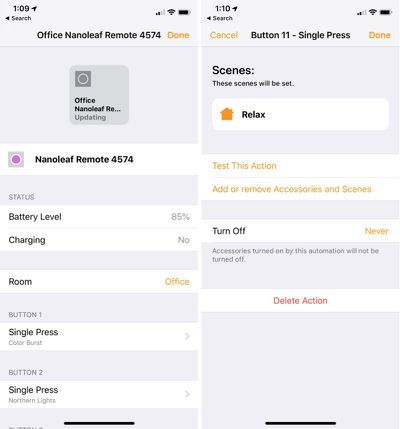
For example, I have side 11 of the Nanoleaf Remote set to turn down all of the Hue lights in my office after work in a scene I call "Relax," while side 12 is set to a "Good Night" scene that turns off all of the lights in the house and activates a night light.
Bottom Line
I've had trouble with some of the button and remote-style HomeKit products refusing to connect to my HomeKit setup after a period of time, but that hasn't been an issue with the Nanoleaf Remote.
In the few weeks that I've been testing it, the Nanoleaf Remote has been responsive every time and while I was skeptical of its ability to determine which side was activated, it works well. When I turn it, it reliably detects the correct side and activates the corresponding scene.
A lot of HomeKit control options use a single button with multiple gestures, but the Nanoleaf Remote is simpler. There's no need to press, double press, or triple press -- I just turn the remote to the right side.
With the ability to activate 12+ scenes (you can set multiple scenes to a single side) the Nanoleaf Remote offers more options than other products on the market, and at $50, it's competitively priced. Scenes can include just the Light Panels or you can incorporate other HomeKit products, which is useful for people with a range of HomeKit accessories. My only complaint is that there are some error messages you'll encounter in the Nanoleaf app, which definitely needs some serious improvement.
It takes a few days to memorize the 12 sides, but I found it surprisingly easy to keep track of what's what with a little bit of use. If you have the Nanoleaf Smart Panels and want quick access to different lighting scenes and a way to control your other HomeKit products without an iPhone, the Nanoleaf Remote is worth the purchase price and beats out other remote control options on the market, even with the app quirks.
How to Buy
The Nanoleaf Remote can be purchased from the Nanoleaf website for $49.99, and it's also available in Apple retail stores and the Apple online store.
Starting on Wednesday, July 18, Apple retail stores will have dedicated Nanoleaf demonstration areas where customers can get hands-on experience with the HomeKit-enabled Nanoleaf Light Panels and Remote before purchasing.
Note: Nanoleaf provided MacRumors with a Nanoleaf Remote for the purpose of this review. No other compensation was received.






















Top Rated Comments