Once you've created a playlist in Apple Music, adding a cover image of your own is easy. Here's how to do it.
Add a Photo to a Playlist on iPhone and iPad
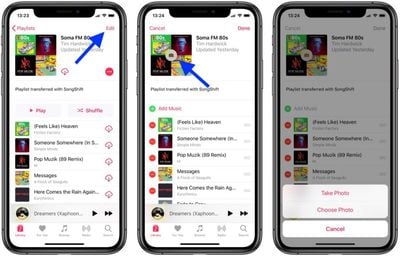
- Launch the Music app on your iOS device and navigate to the playlist you want to add a picture to.
- Tap Edit in the upper right corner of the screen.
- Tap the cover image.

- Choose Take Photo or Choose Photo from the pop-up menu.
- Take the photo with your device's camera, or choose a photo from your photo albums.
- Tap Done.
Add a Photo for a Playlist on Your Computer
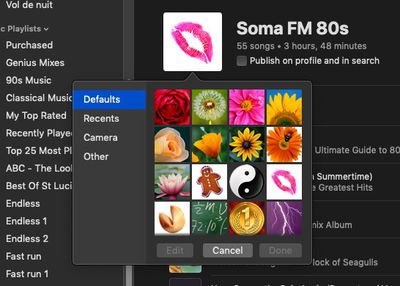
- Open iTunes on your computer and click the playlist in the sidebar that you want to add a photo to.
- Click the main cover image in the playlist.
- Click Camera in the pop-up pane to take a photo with your computer's camera, or click Other to locate a photo on your hard disk. You can also click Recents to find a recent photo you used or Defaults to select an Apple profile picture.
- Click Done.
Tag: Apple Music Guide