If you've signed up to an Apple Music family subscription and you're concerned about your children accessing explicit content on the streaming service, you can use Apple's Screen Time feature to limit what they can listen to. Here's how it works.
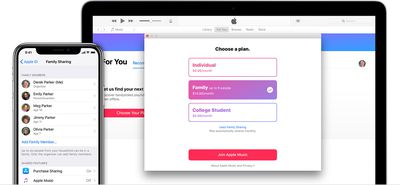
When you sign up for an Apple Music Family subscription, Apple's Family Sharing feature is what lets other people in your family access Apple Music on their devices.
As family organizer, you can also configure Screen Time settings for your child's device from your own device. This means you can remotely set content restrictions for their iPhone or iPad and prevent them from playing explicit content in Apple Music.
- Launch the Settings app on your iOS device.
- Tap Screen Time.
- Tap Turn On Screen Time, then tap Continue.
- Select This is My iPhone/iPad.
- Tap your child's name.
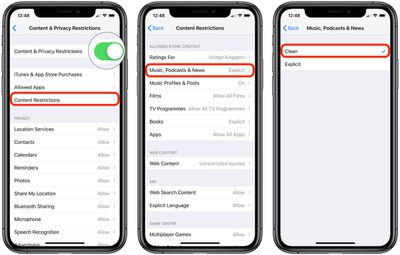
- Tap Content & Privacy Restrictions.
- Tap the toggle beside Content & Privacy Restrictions to turn it on.

- Tap Content Restrictions.
- Tap Music, Podcasts & News.
- Select Clean.
If you don't see your child's name listed in the main Screen Time menu (step 5 above), tap Set up Screen Time for Family and then follow the onscreen instructions.
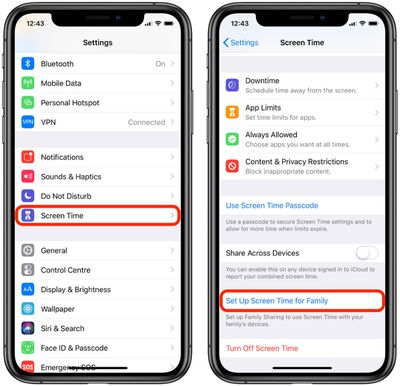
Note that you can also set content restrictions directly on your child's device. To do so, go to Settings -> Screen Time, and select This is My Child's iPhone/iPad.
You'll then be asked to create a special four-digit passcode for accessing Screen Time settings on this device, ensuring no-one will be able to change them except for you.